HubSpot Integration
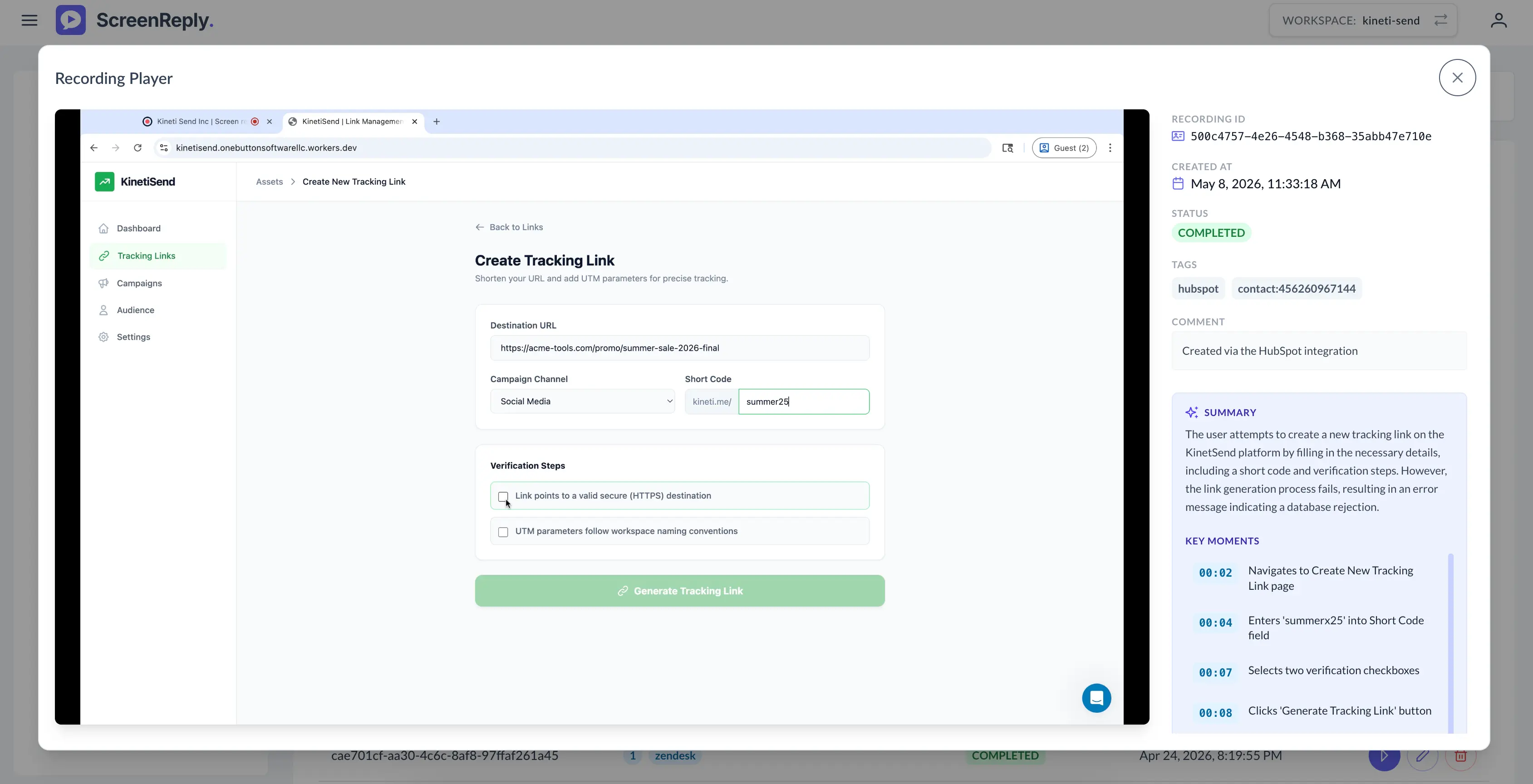
ScreenReply upgrades your HubSpot workspace by letting you and your customers share screen recordings with each other to communicate more effectively. Instead of writing long explanatory emails, you can use the CRM card right on your Contact, Deal, or Ticket records to record your own screen or instantly request a video from your client. It’s the fastest way to get everyone on the same page.
See this integration in action and discover how to let clients share their screen directly in HubSpot.
Installation
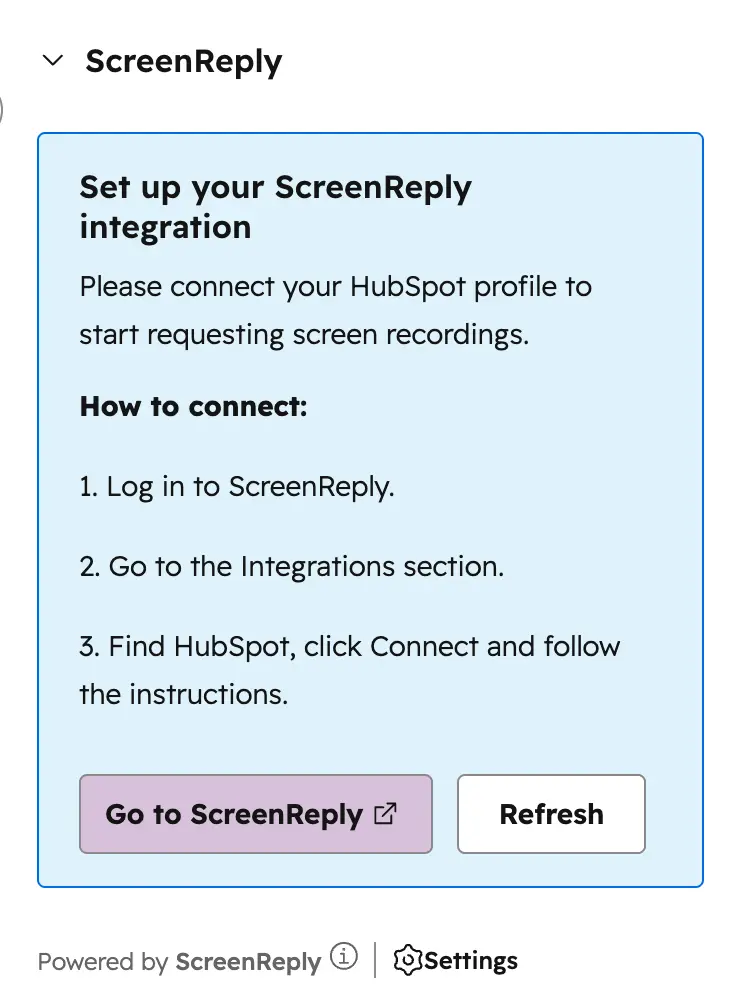
After adding the application from the official marketplace , you must link your accounts. Navigate to the initial setup screen and click the Go to ScreenReply button to initiate the authorization process.
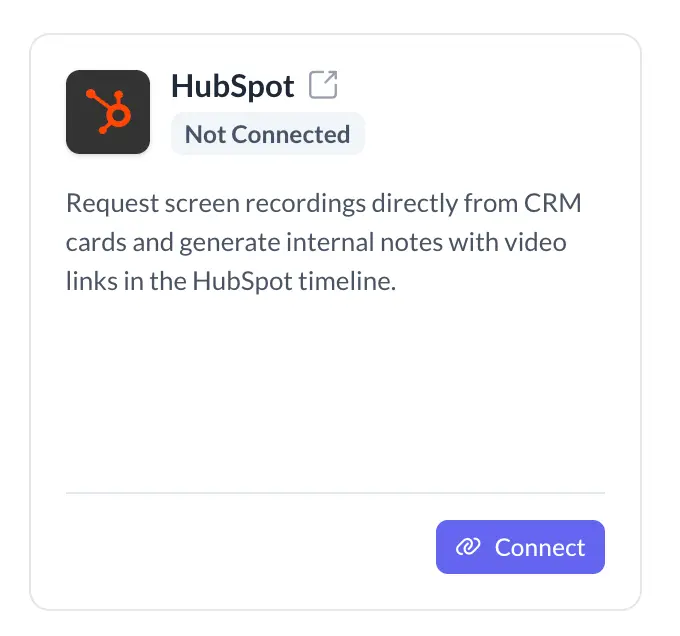
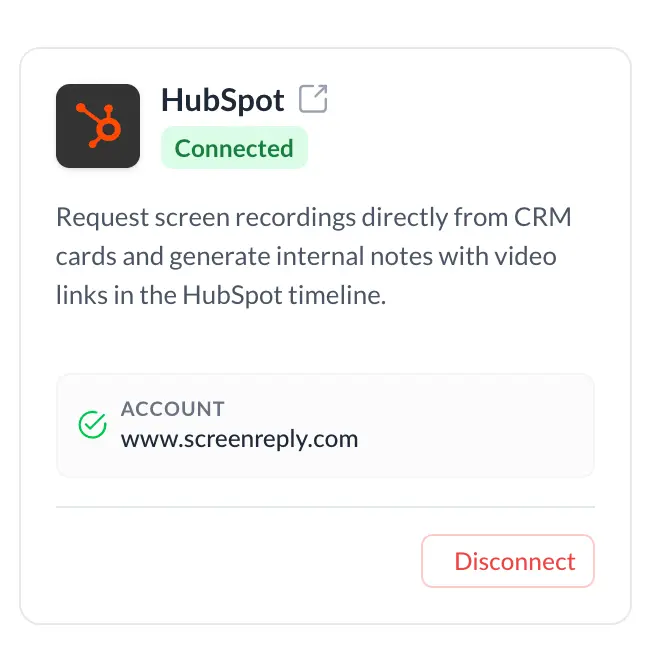
This action redirects you to your ScreenReply dashboard. Find the HubSpot module within the Integrations tab and click on Connect.
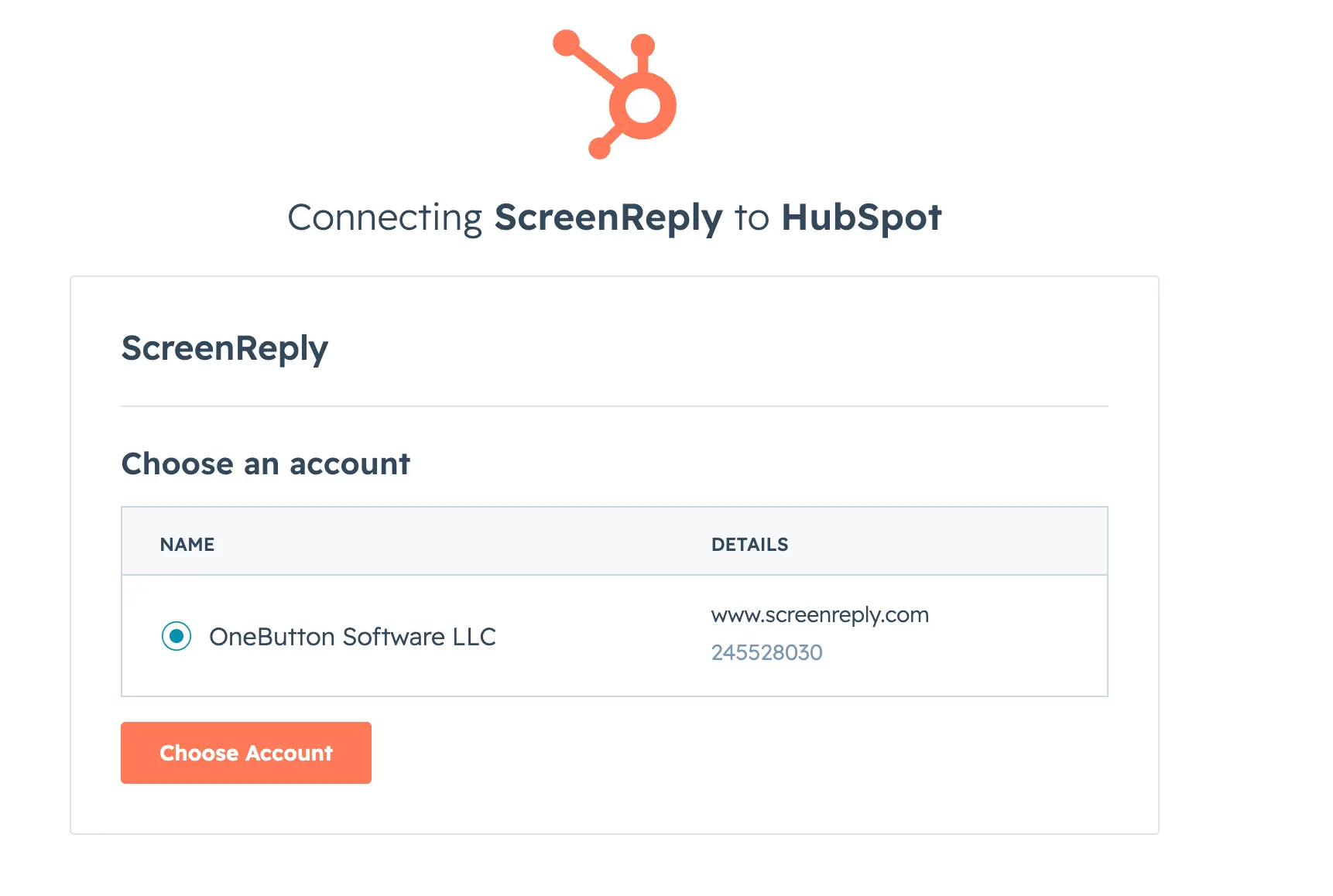
HubSpot will prompt you to choose the account you wish to integrate. Review the required permissions and grant ScreenReply access to your CRM data.
Configuration is complete! The ScreenReply integration with your HubSpot portal is now successfully finished.
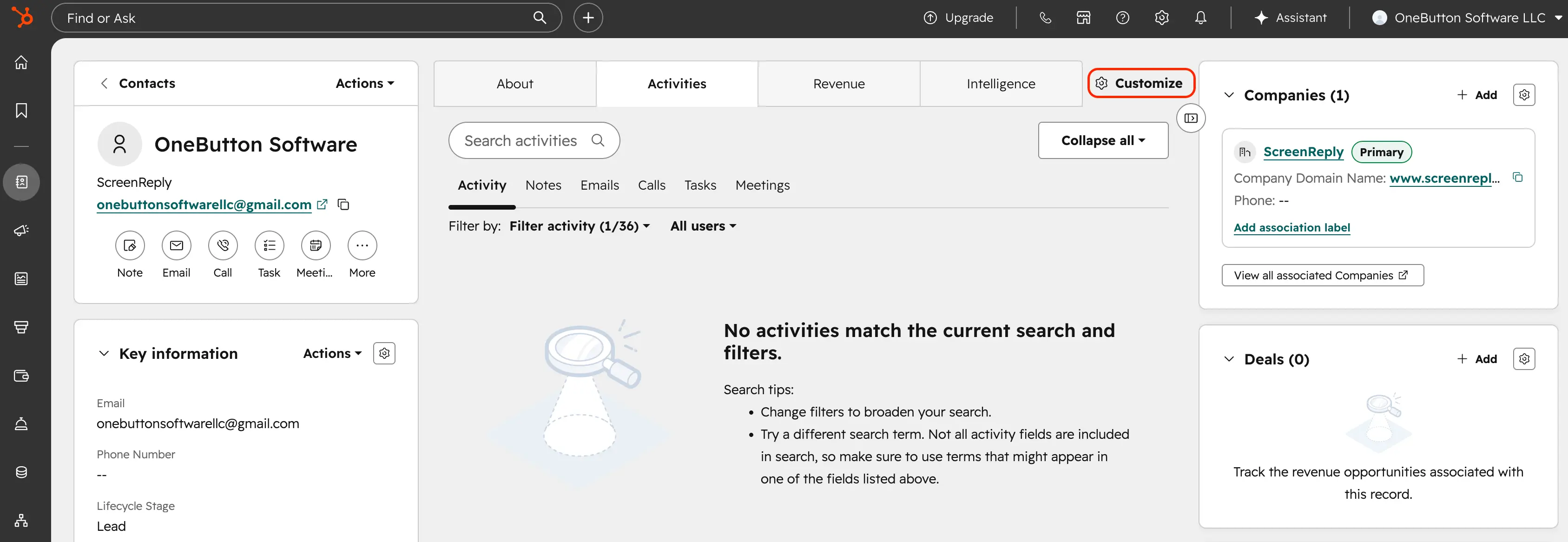
To access the application, you need to add the ScreenReply card to your interface. Note: You must perform these steps separately for each object type (Contact, Ticket, Deal, or Company) where you want the card to appear:
- Click Customize.
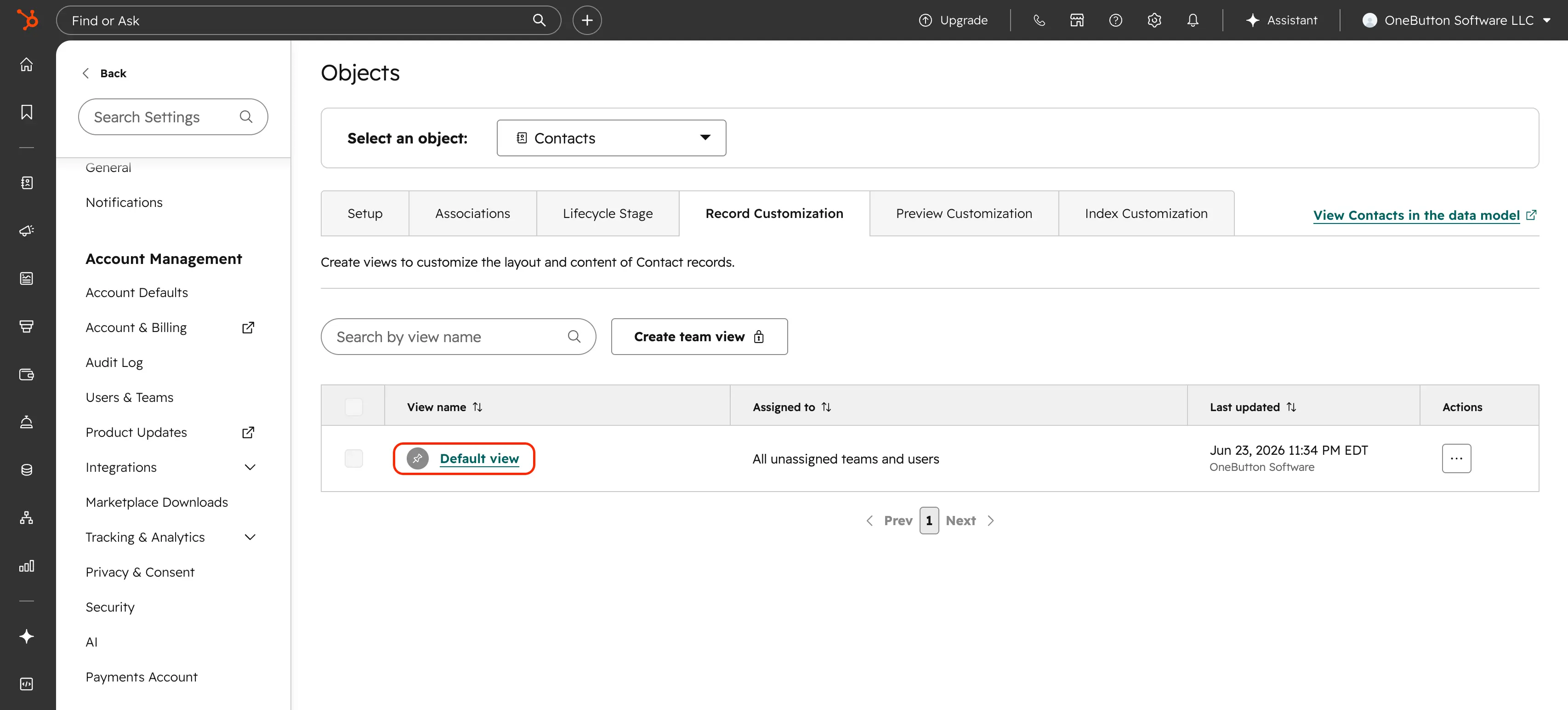
- Select Default view.
- In the right-hand panel, click the + (Add) icon.
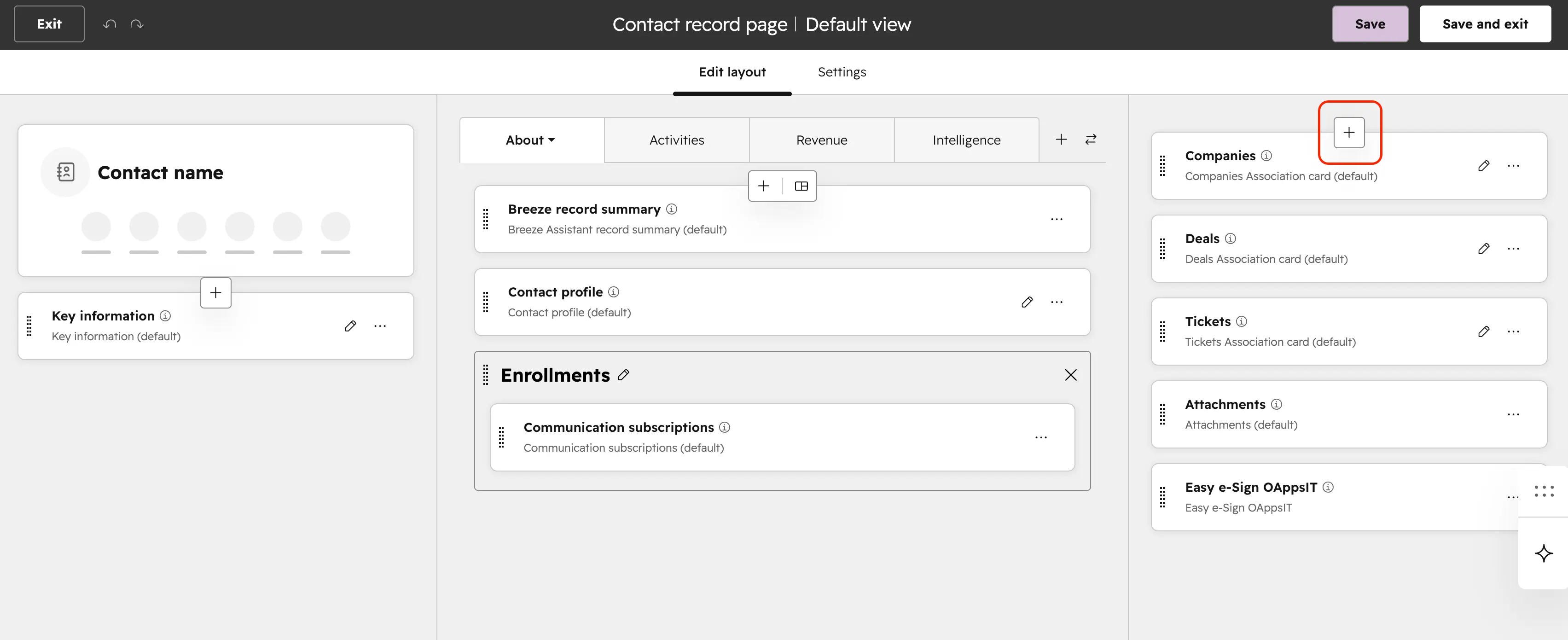
- Go to the Card library tab.
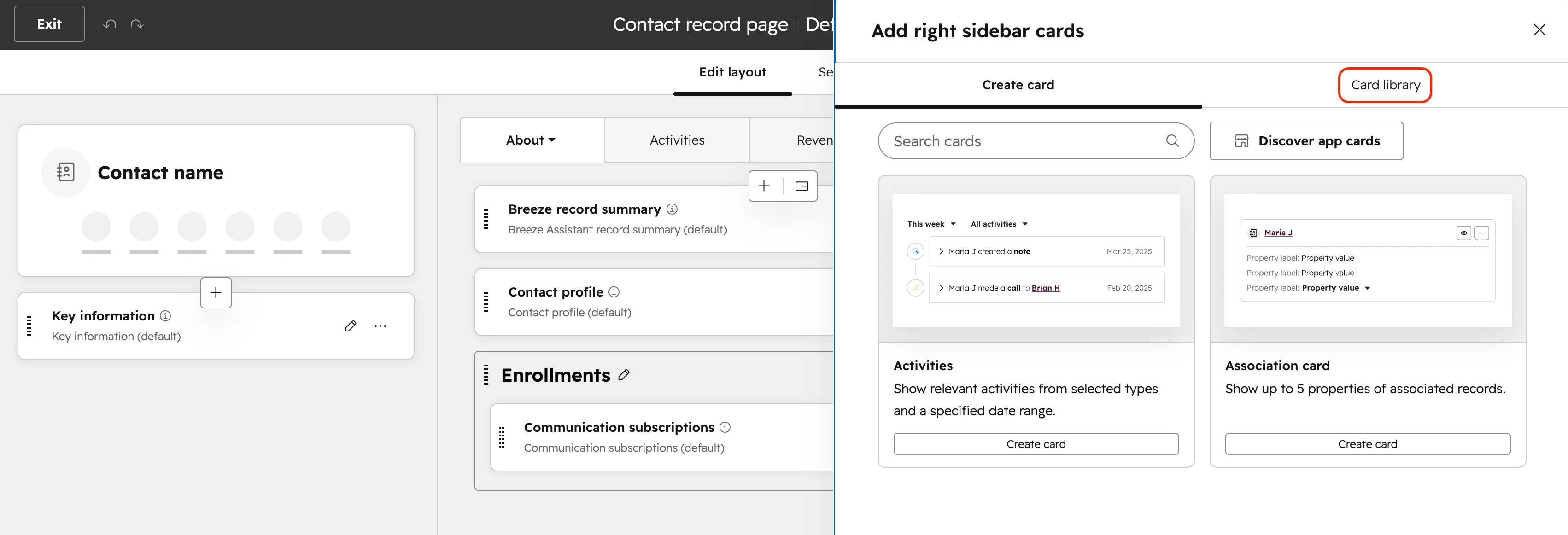
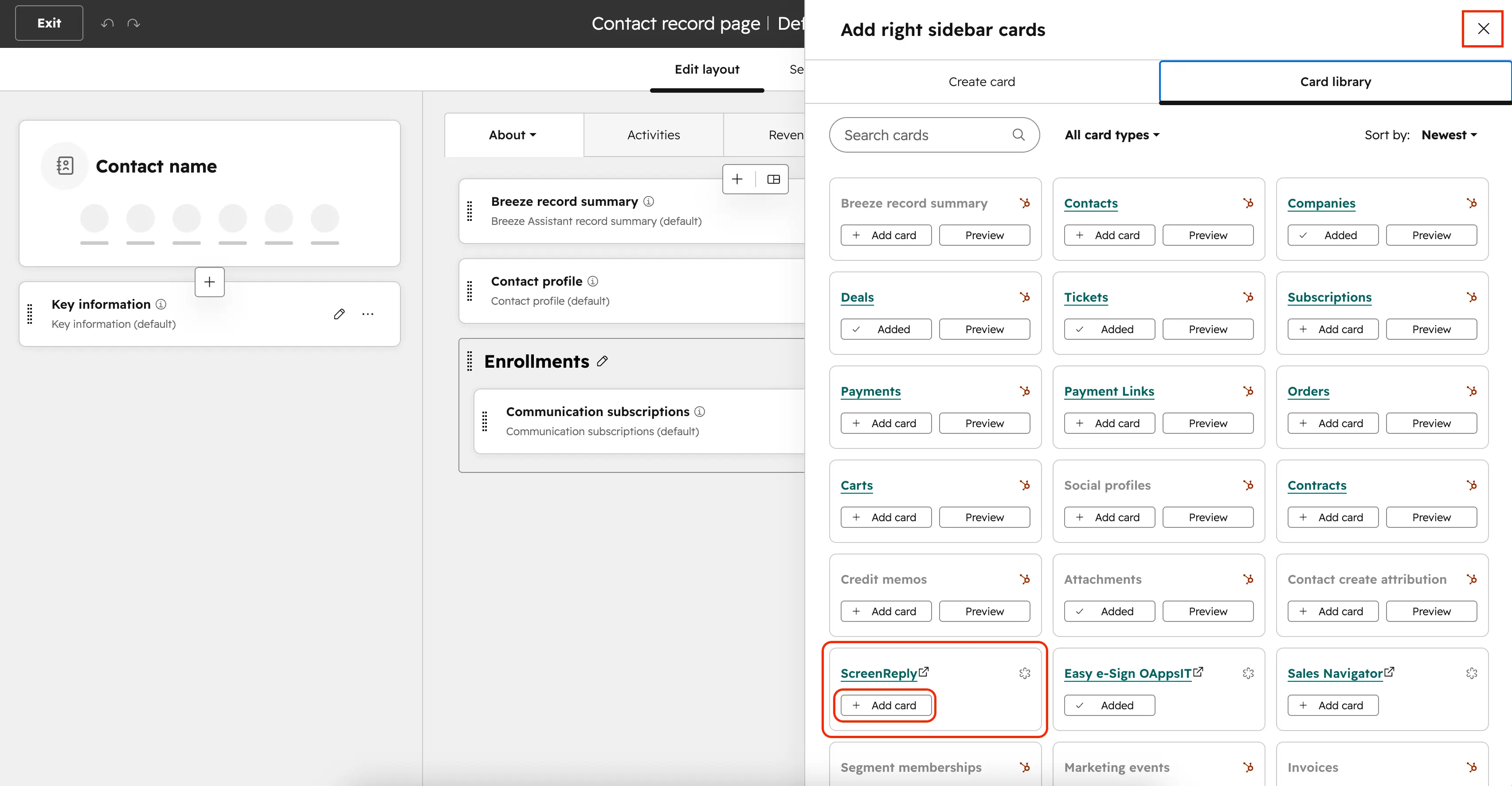
- Locate ScreenReply and click + Add card. Then, click the X to close the card addition interface.
- Click Save and Exit.
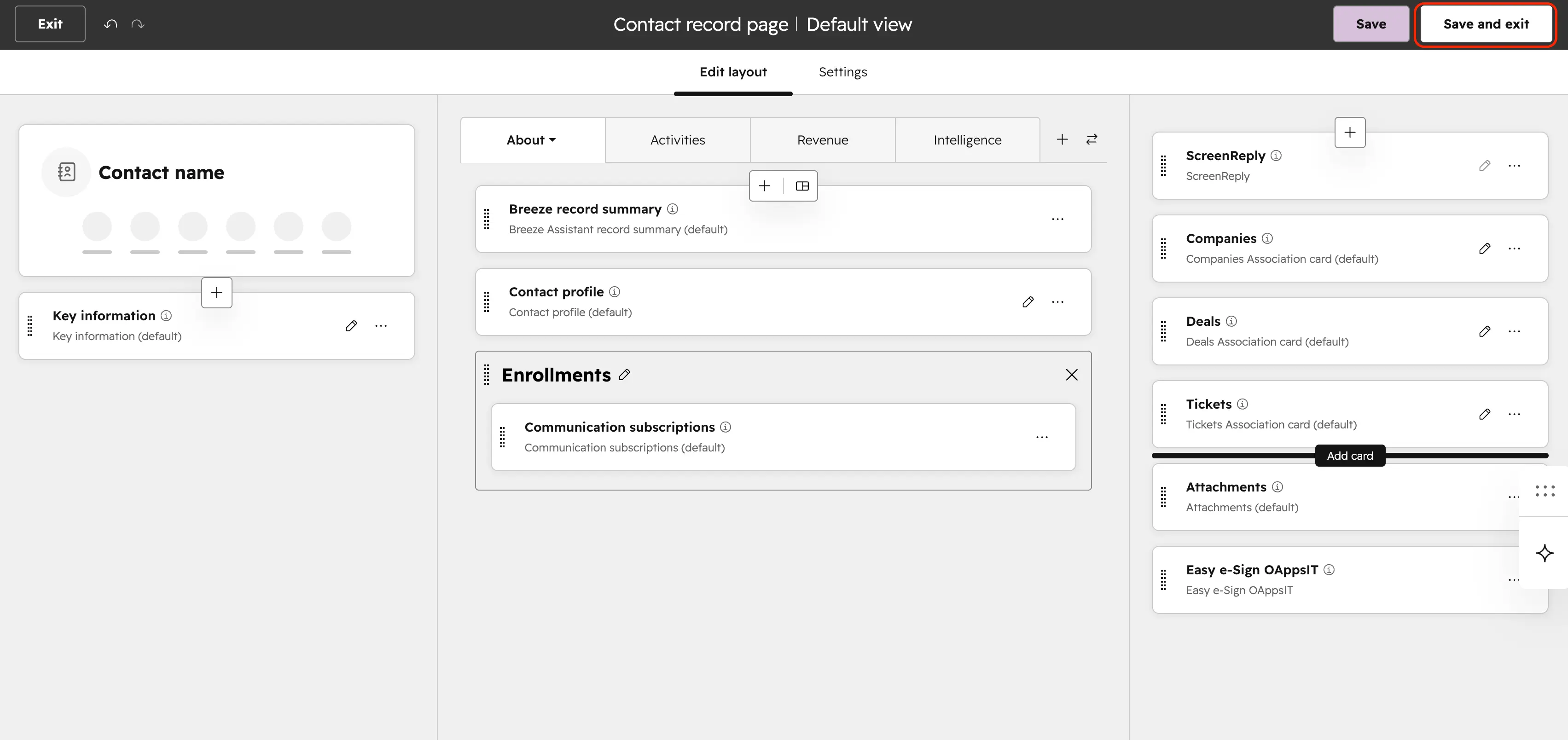
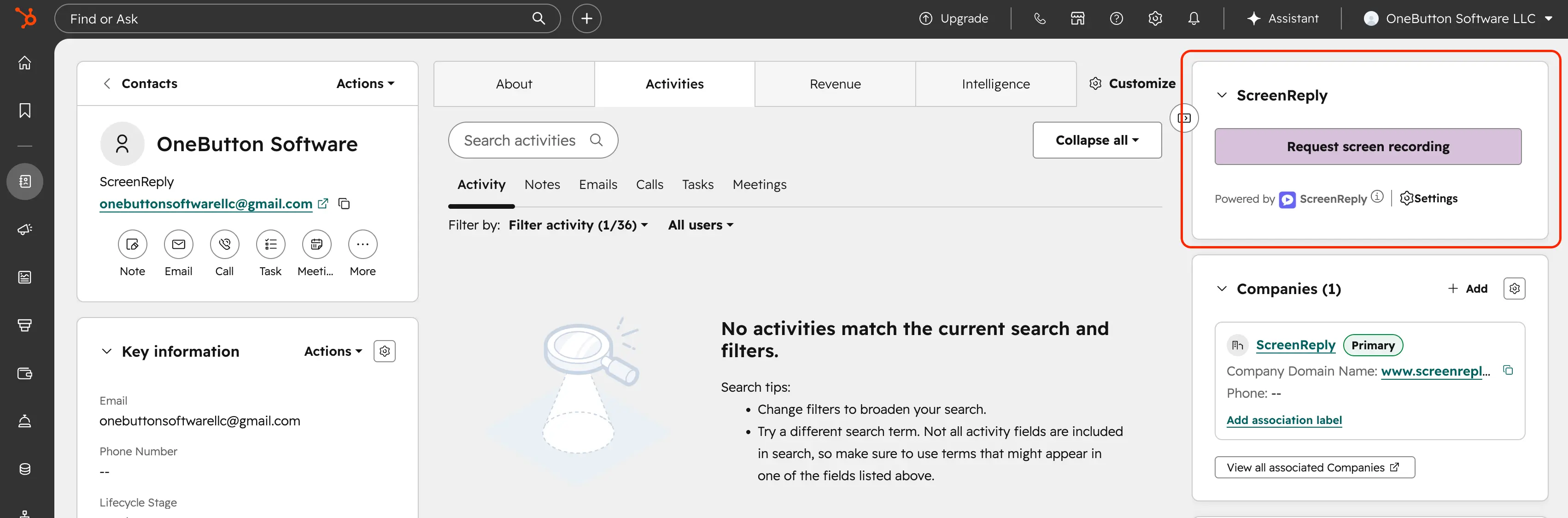
- The ScreenReply card will now be available on the record type you just modified. Repeat this process for any other records (Contacts, Tickets, Deals, or Companies) as needed.
How to Use
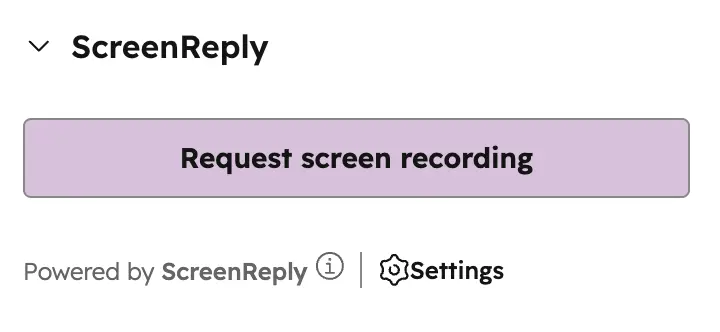
Navigate to a support ticket or contact record where a video explanation would be helpful. On the right-hand sidebar, locate the ScreenReply card and click Request Screen Recording to generate a personalized link to share with your customer.
As soon as your client finishes capturing their screen, the integration automatically logs a new engagement note directly onto the HubSpot activity timeline.
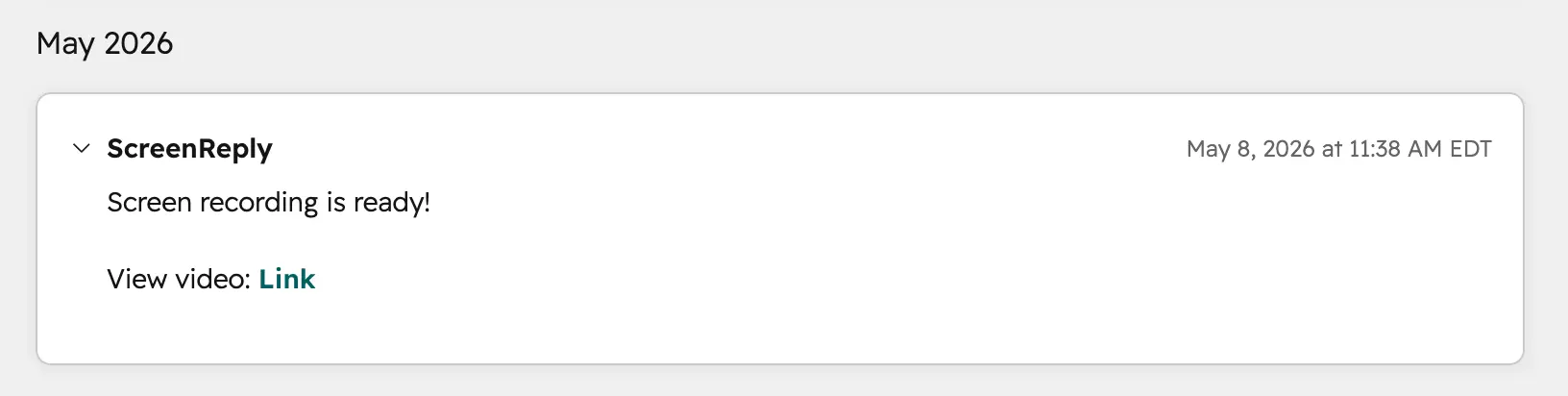
Click the provided URL inside the timeline activity to securely view the recorded video. Gain immediate clarity on the issue and provide a faster, more accurate resolution.