Help Scout Integration
ScreenReply upgrades your Help Scout mailbox by letting you and your customers share screen recordings with each other to communicate more effectively. Instead of dealing with confusing back-and-forth email chains, you can use the ScreenReply app directly within your sidebar to instantly request a video from a customer or record your own screen. It’s the fastest way to provide visual context and get everyone on the same page.
See this integration in action and discover how to let clients share their screen directly in Help Scout.
Note: Help Scout requires third-party sidebar integrations to be installed as a Custom App. Follow the steps below to easily configure your custom app and connect it to ScreenReply.
Installation
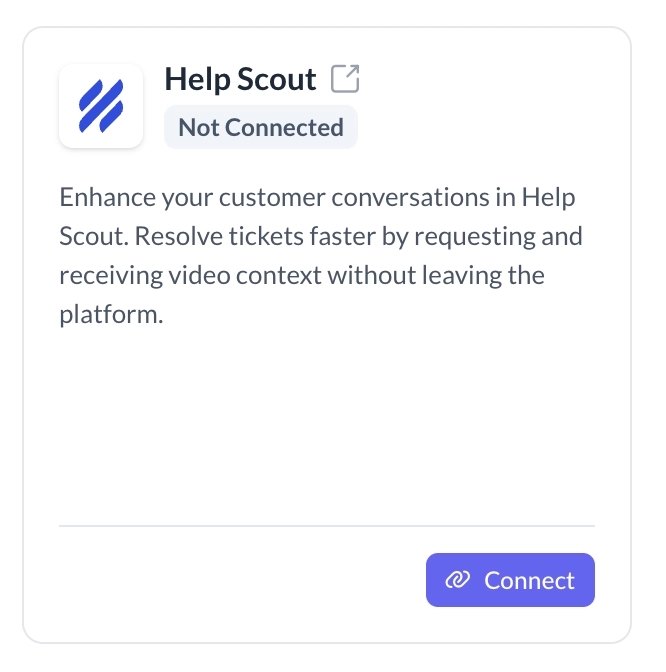
Open your ScreenReply dashboard. Navigate to the Integrations panel, locate the Help Scout application block, and press Connect.
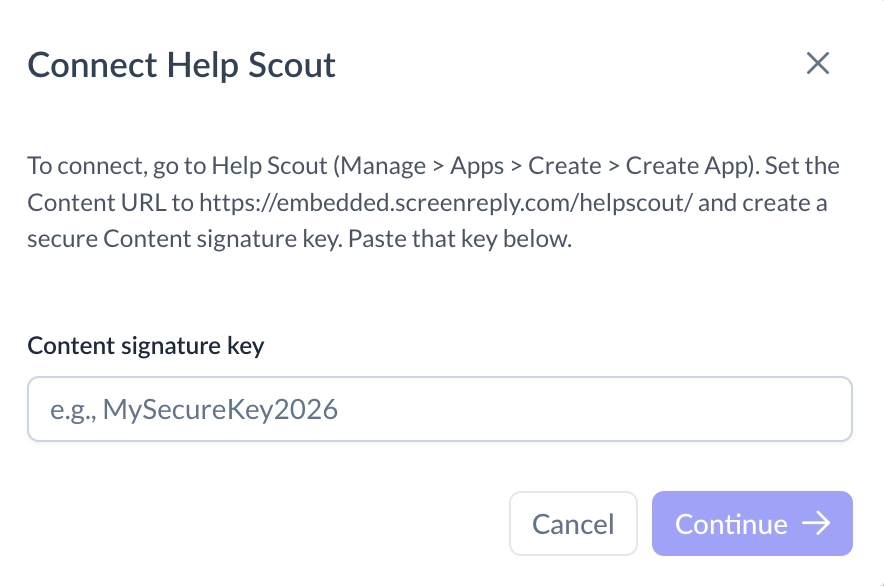
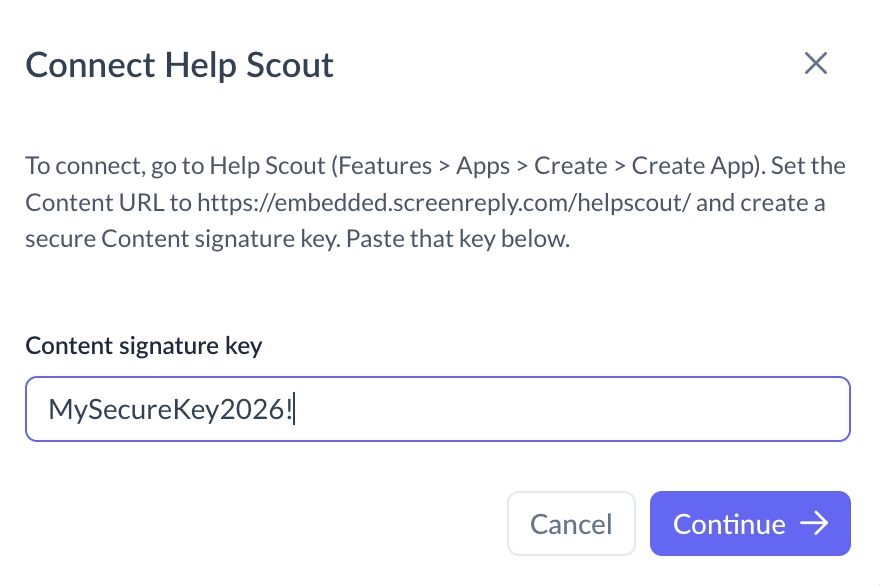
A dialog will appear asking for a Content signature key. Leave this window open for now.
In a new browser tab, log in to your Help Scout account. In the left sidebar, navigate to Manage > Apps > Create > Create App.
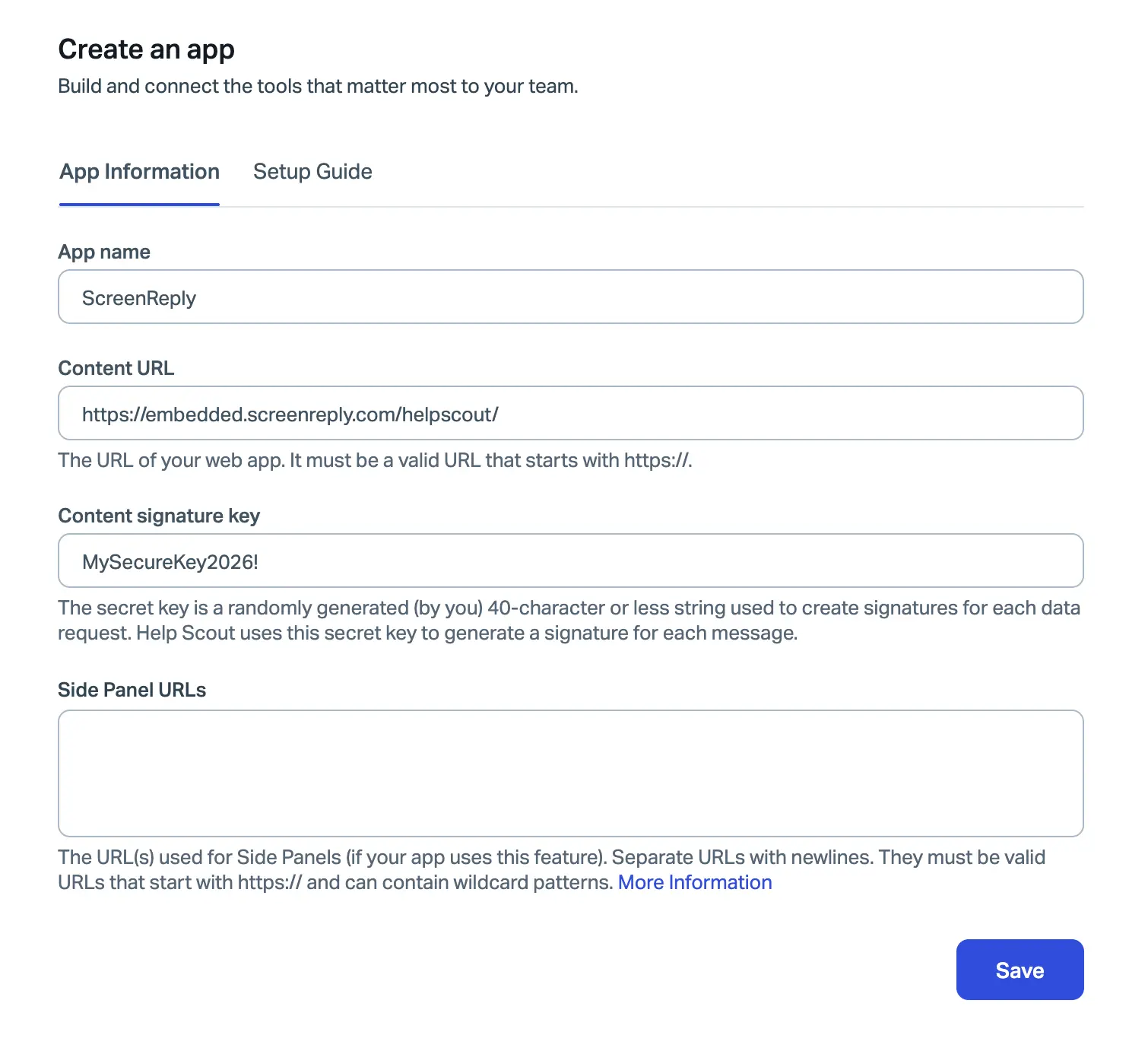
Fill out the "Create an app" form exactly as follows:
- App name: Enter "ScreenReply".
- Content URL: Paste exactly
https://embedded.screenreply.com/helpscout/ - Content signature key: You must create your own secret password (up to 40 characters). We use this password to securely identify and verify requests coming from your Help Scout account, so it is highly recommended to make it complex (e.g., a random mix of letters and numbers like
MySecureKey2026!). Copy this key to your clipboard, you will need it in the next step. - Side Panel URLs: Leave this field empty.
Select the mailboxes where you want the app to appear and click Save at the bottom of the page.
Return to the ScreenReply dashboard, paste the Content signature key you just created into the dialog field, and click Continue.
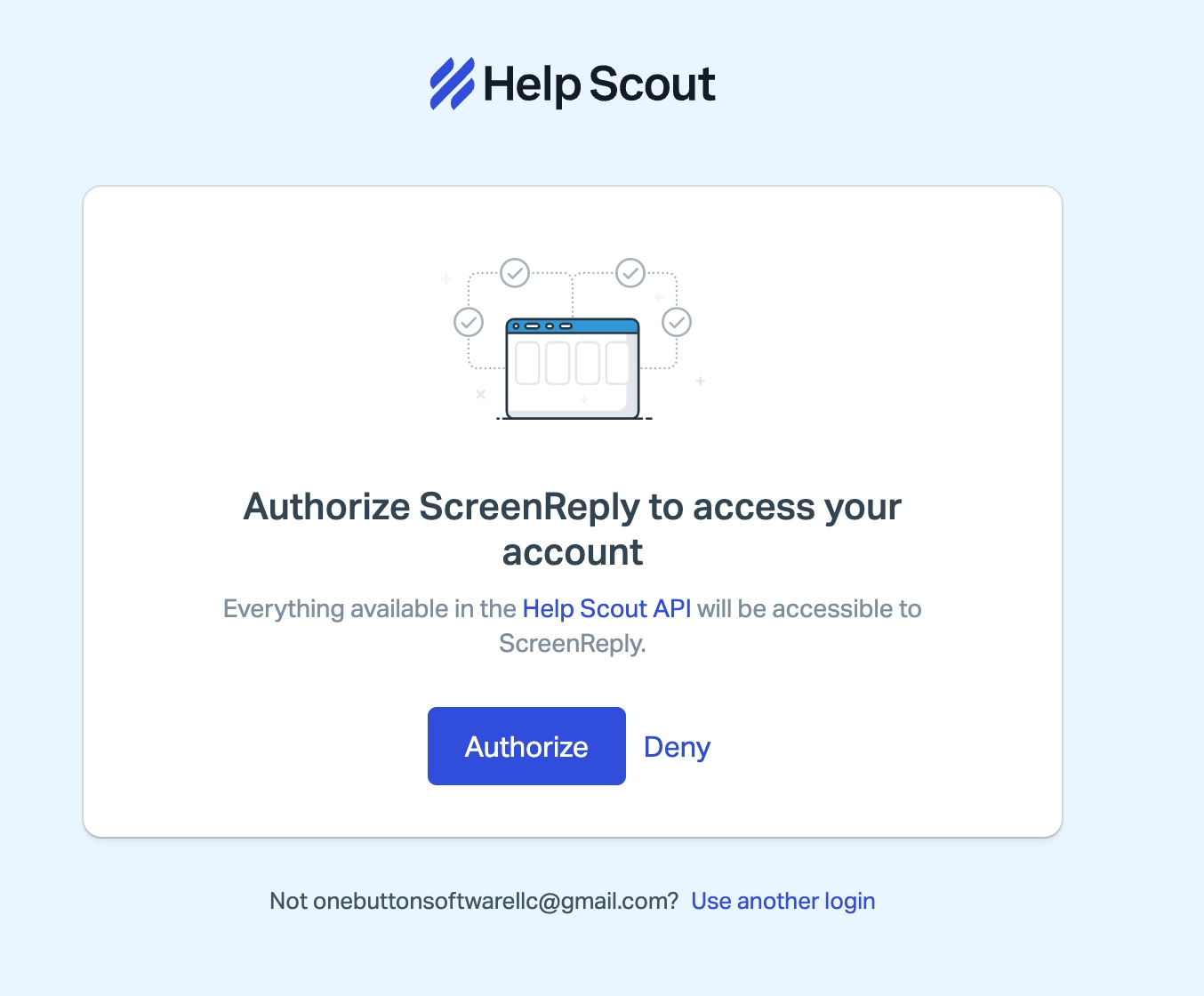
You will be redirected to an authorization screen. Review the requested access levels carefully and authorize ScreenReply to interact with your Help Scout mailboxes.
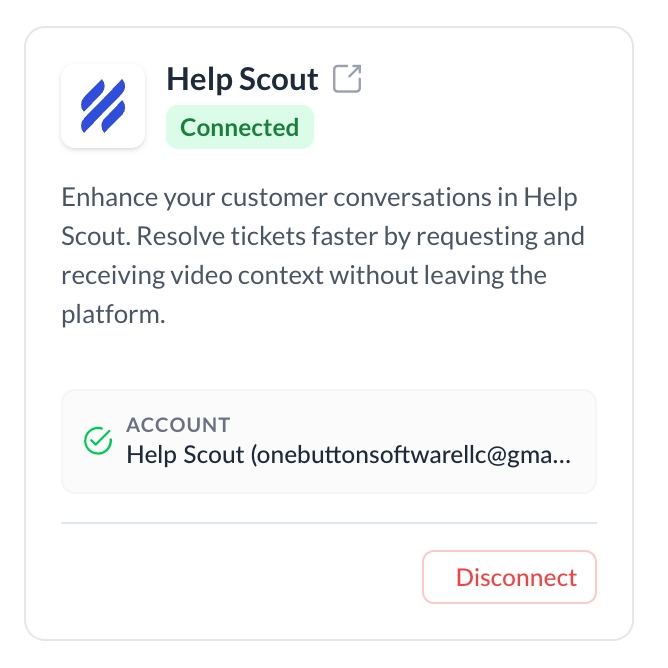
Setup is now finished! Open any Help Scout conversation in your selected mailboxes, and you will see the ScreenReply app active in the right-hand sidebar.
How to Use
Whenever a customer reaches out with a complex issue, open their conversation thread. Look for the ScreenReply app in the right sidebar and click Request Screen Recording to instantly copy a unique capture link.
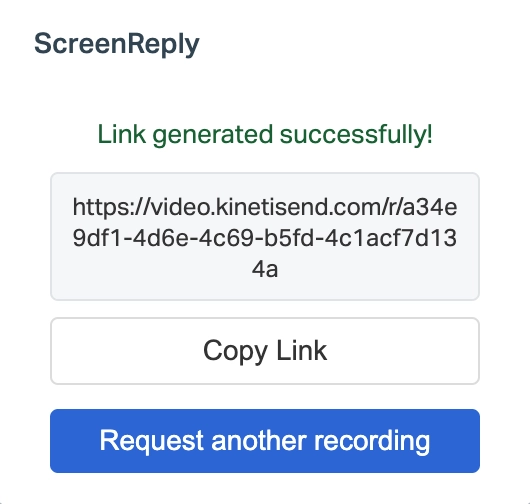
Immediately after the customer finishes recording their screen, the integration will automatically append a private note to that specific Help Scout conversation, alerting your team that the video is ready.
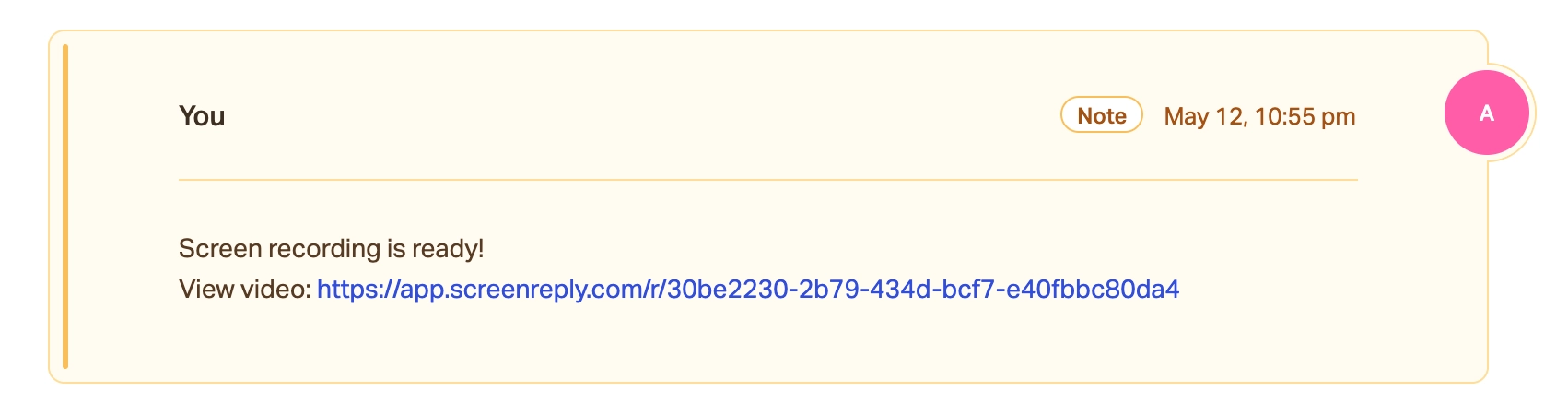
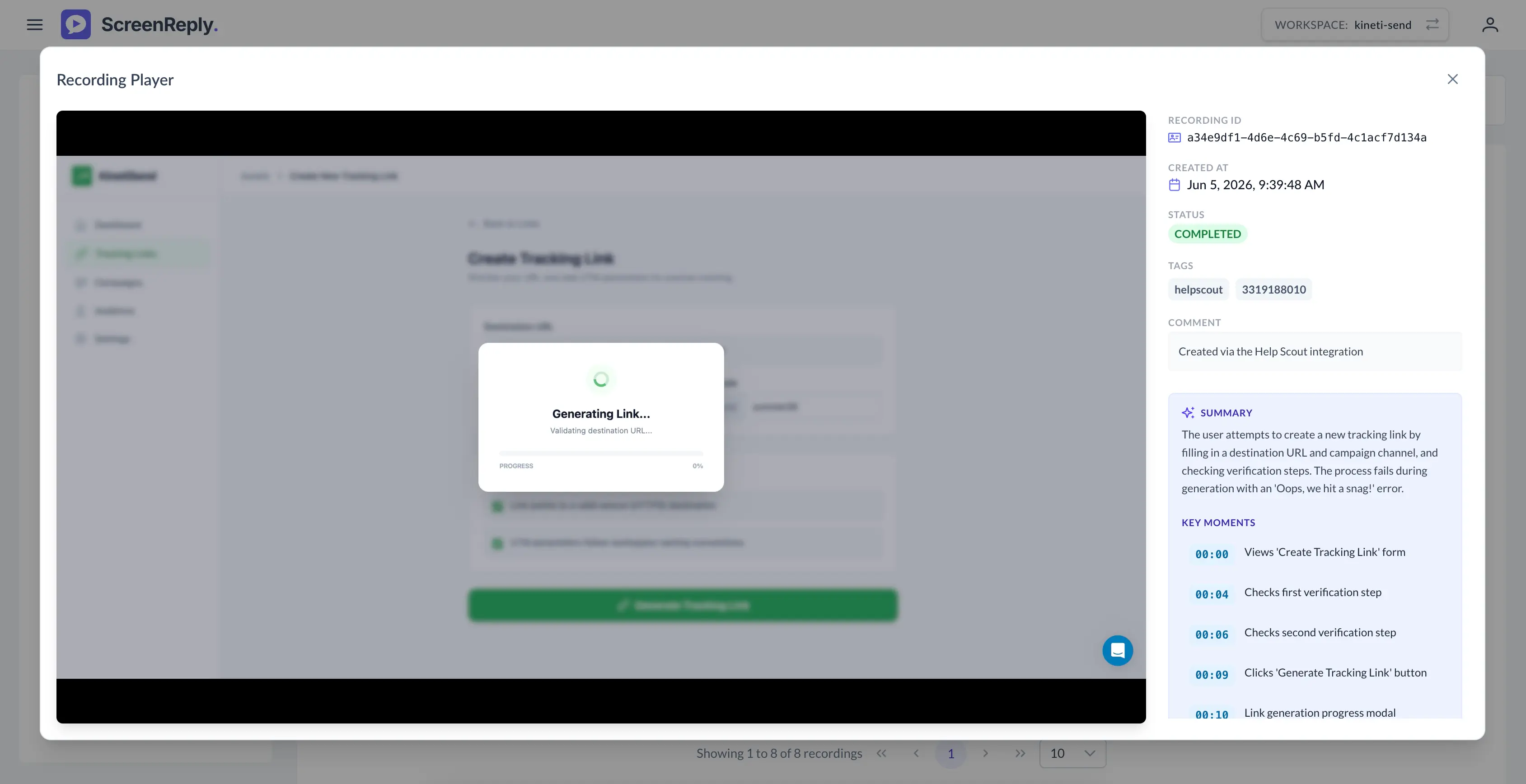
Simply click the link embedded in the private note to securely stream the video in our dedicated player, read the AI summary, and get the exact visual evidence you need to provide an accurate resolution.