Zapier Screen Recording:
Let Clients Share Their Screen
Generate screen recording requests automatically, or instantly sync incoming screen recordings to Slack, Gmail, or your CRM. Zero software installs required.
Two-way automation for your tech stack
ScreenReply works as both a Trigger and an Action, giving you full control over how you request and receive screen recordings.
Request Recordings via API
Use Zapier Actions to automatically generate unique ScreenReply request links when a new record is added to your CRM, and pass them into your email sequences.
Trigger Workflows Automatically
Whenever a customer submits a new screen recording, instantly fire Zapier Triggers to alert your team. Never manually download or transfer a link again.
Map Links Everywhere
Pass the secure recording link and duration directly into emails, Zendesk notes, or Google Sheets rows. Keep all your systems in sync instantly.
How to automate screen recordings
Use ScreenReply to both send requests and receive inbound screen recordings.
Generate requests automatically
Use ScreenReply as the Action step in your Zap. Set your CRM (like HubSpot or Salesforce) as the Trigger when a new deal or ticket is created.
Zapier will command ScreenReply to generate a brand new, unique request link. You can then map that link directly into an automated email sent back to the customer.
Route incoming screen recordings automatically
Set ScreenReply as your Trigger event. When a client finishes a screen recording, Zapier immediately catches the secure video link and duration.
Use this data in subsequent Actions to instantly notify your team in Slack, send an email via Gmail, or log the interaction in Google Sheets.
Maintain your brand identity
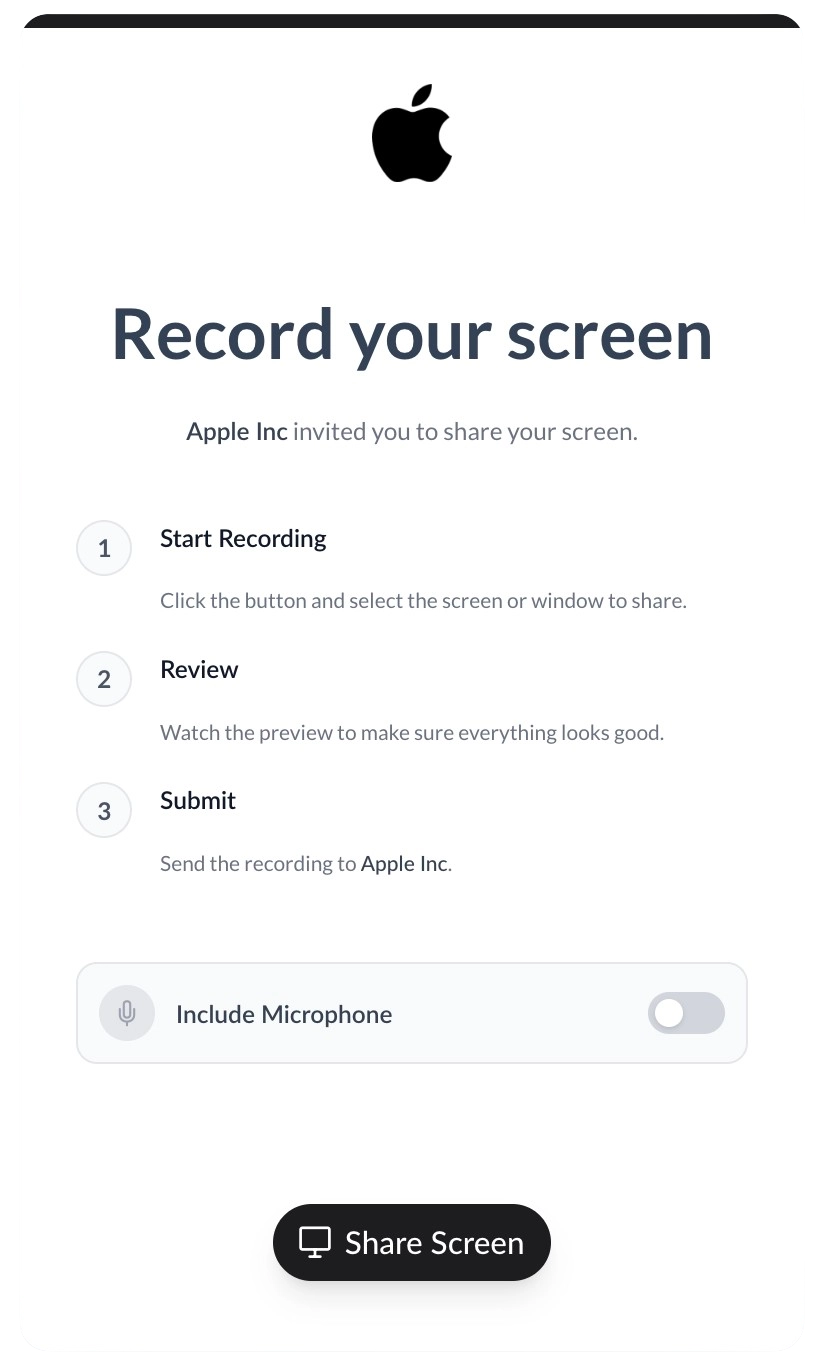
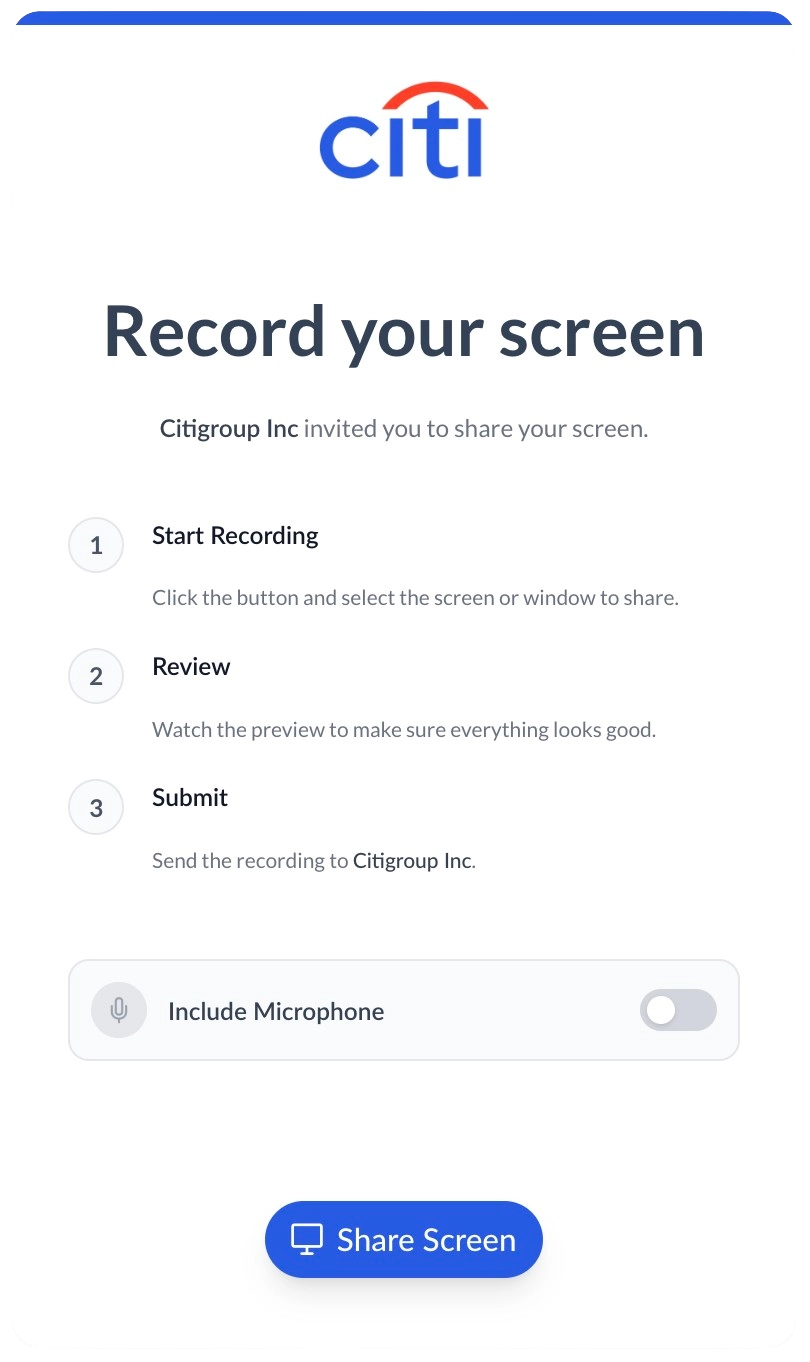
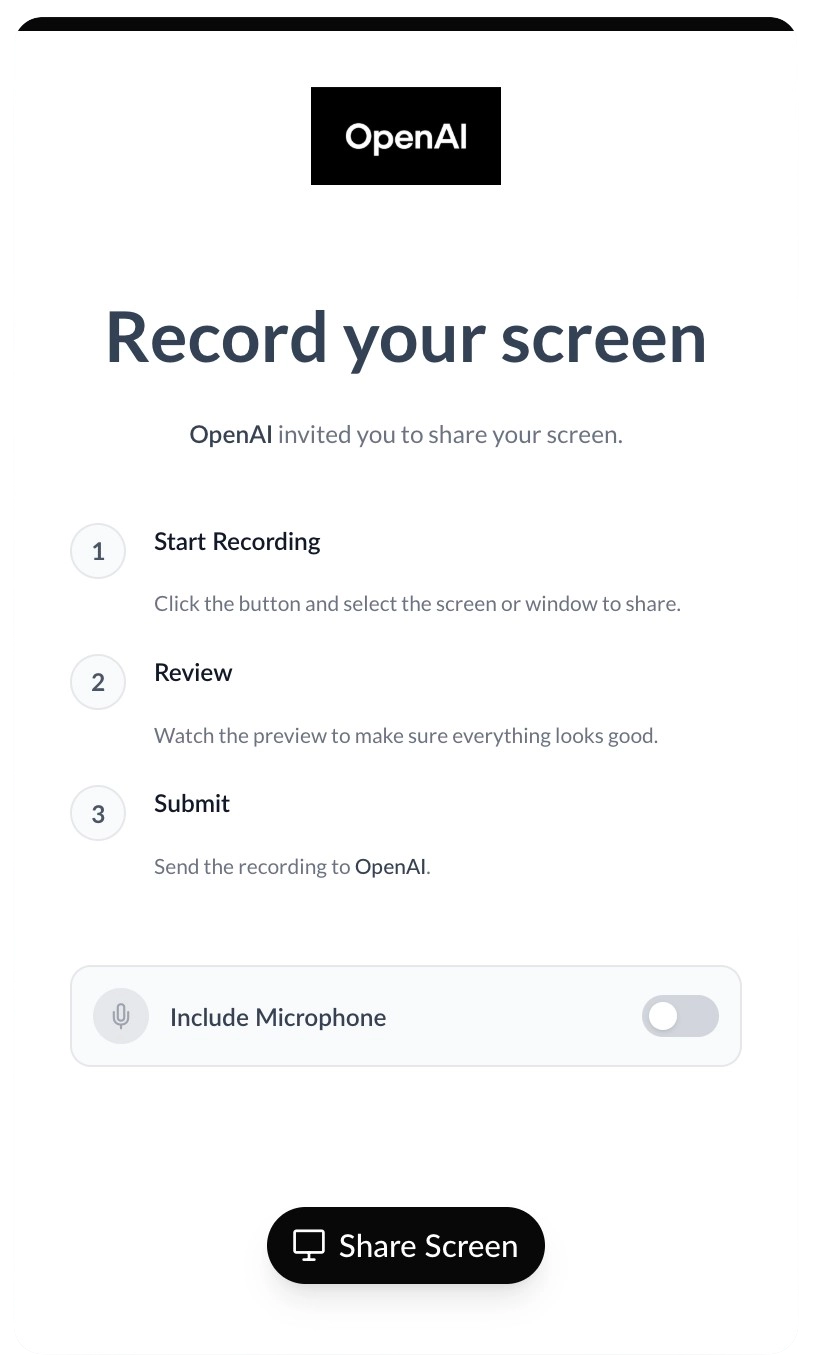
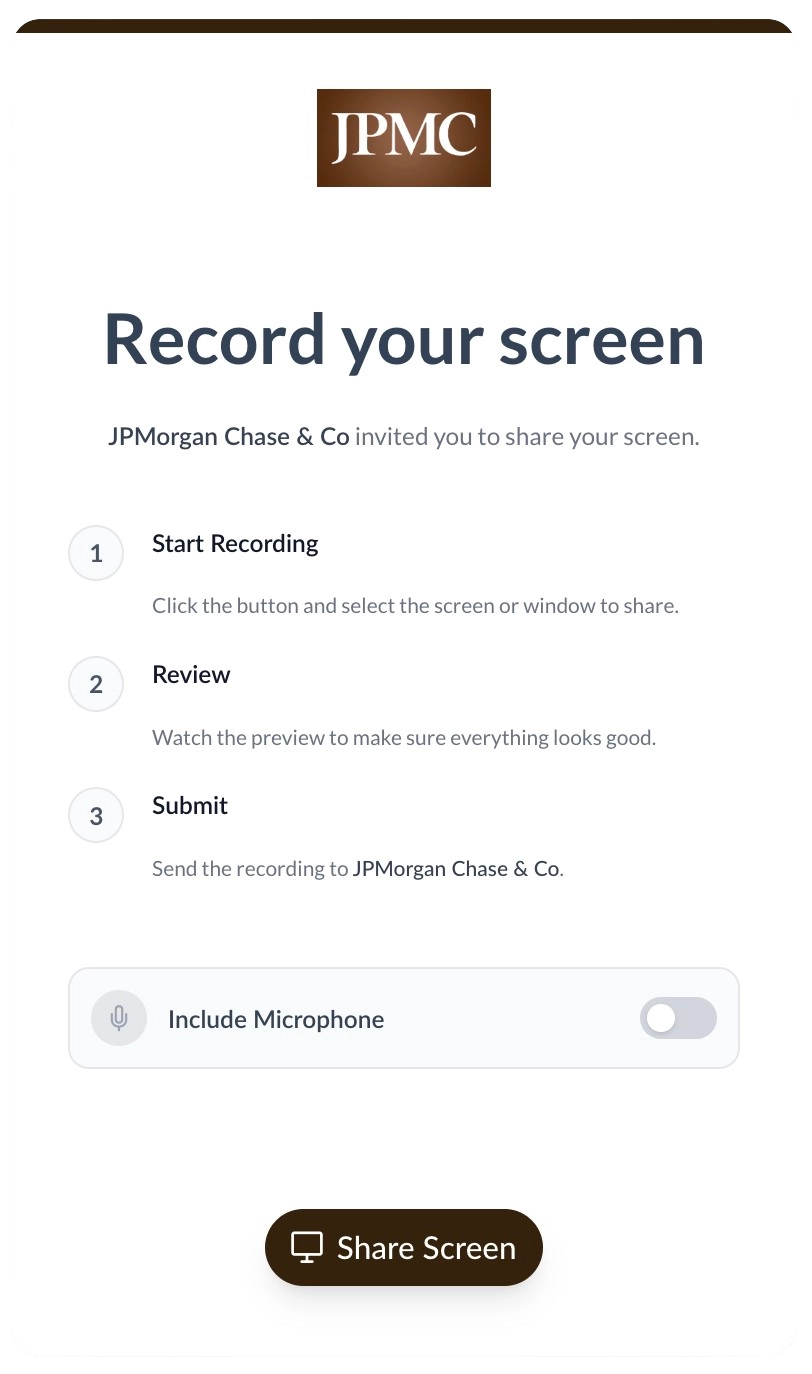
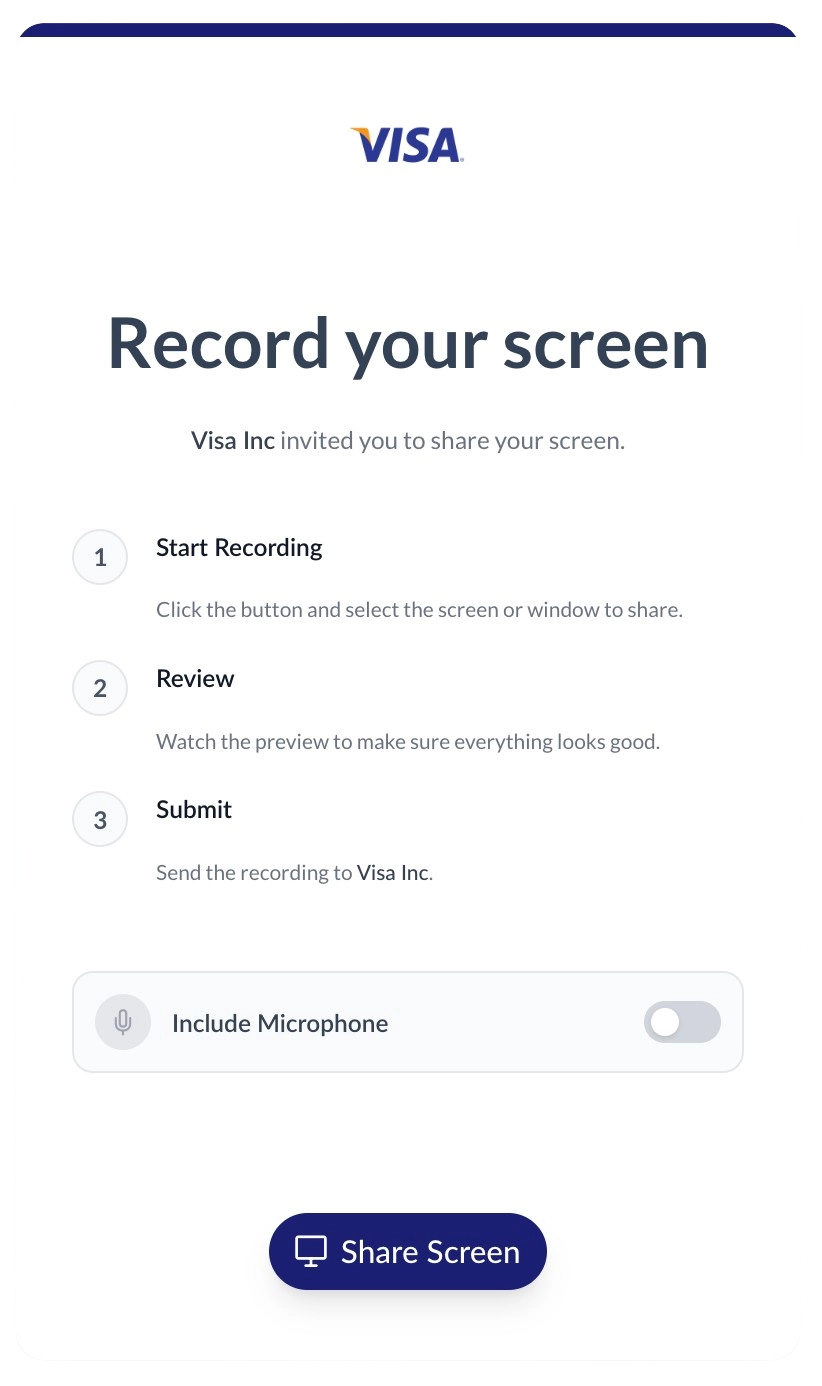
No matter how you automate link generation, when clients click your request link, they capture their screen in a 100% white-labeled environment. Upload your logo, set your brand colors, and host the portal on your own custom domain.
Popular Ways to Automate
Connect to the platforms where your team already works.
Send Slack messages for new screen recordings
Instantly alert your team with a direct link when a client submits a recording.
Create Jira issues from new screen recordings
Automatically map the recording URL straight into a new bug report in Jira.
Request recordings from new incoming emails
Automatically trigger a screen recording request when a new customer support email arrives in Gmail.
Create Notion database items for new screen recordings
Keep your workspace organized. Turn inbound video feedback into actionable Notion tasks instantly.
Frequently Asked Questions
Can I use Zapier to generate ScreenReply links?
Yes. You can use ScreenReply as an Action step to automatically generate a unique recording request link. You can then send this link to your clients (e.g., via Slack, Jira, or email) so they can easily record their screen and show you their issue.
Do my clients need to install anything to record their screen?
No. ScreenReply is 100% web-based. When Zapier generates a request link, your clients simply click it and start recording directly in their browser—no extensions or software downloads are required.
What data does ScreenReply send to Zapier?
ScreenReply sends a secure link to the recorded video. Clicking this link opens a dedicated dashboard displaying the video player, an AI-generated summary, and clickable timestamps for quick navigation.
Do I need a paid Zapier account to use this?
ScreenReply is a standard Zapier app. You can build basic 2-step Zaps (e.g., ScreenReply to Slack) on Zapier's free tier. For multi-step Zaps or premium apps, you may need a paid Zapier plan according to their pricing.
Can I connect ScreenReply to custom internal tools?
Yes, via Webhooks by Zapier or our direct API, you can easily route the generated request links or inbound video links into any custom dashboard, internal backend, or proprietary CRM you use.
What happens if a client doesn't submit a recording?
The request link remains active until the client uses it to record and submit their video. You can easily set up Zapier delays or automated email reminders in your workflows to follow up if a video hasn't been submitted within a specific timeframe.