Screen recording for
Customer Support
Collect screen recordings from your customers or record your own screen to visually walk them through the solution. Solve tickets in minutes, not hours.
14-day free trial. Unlimited recordings.
How it Works
1. Send a link from your favorite tool
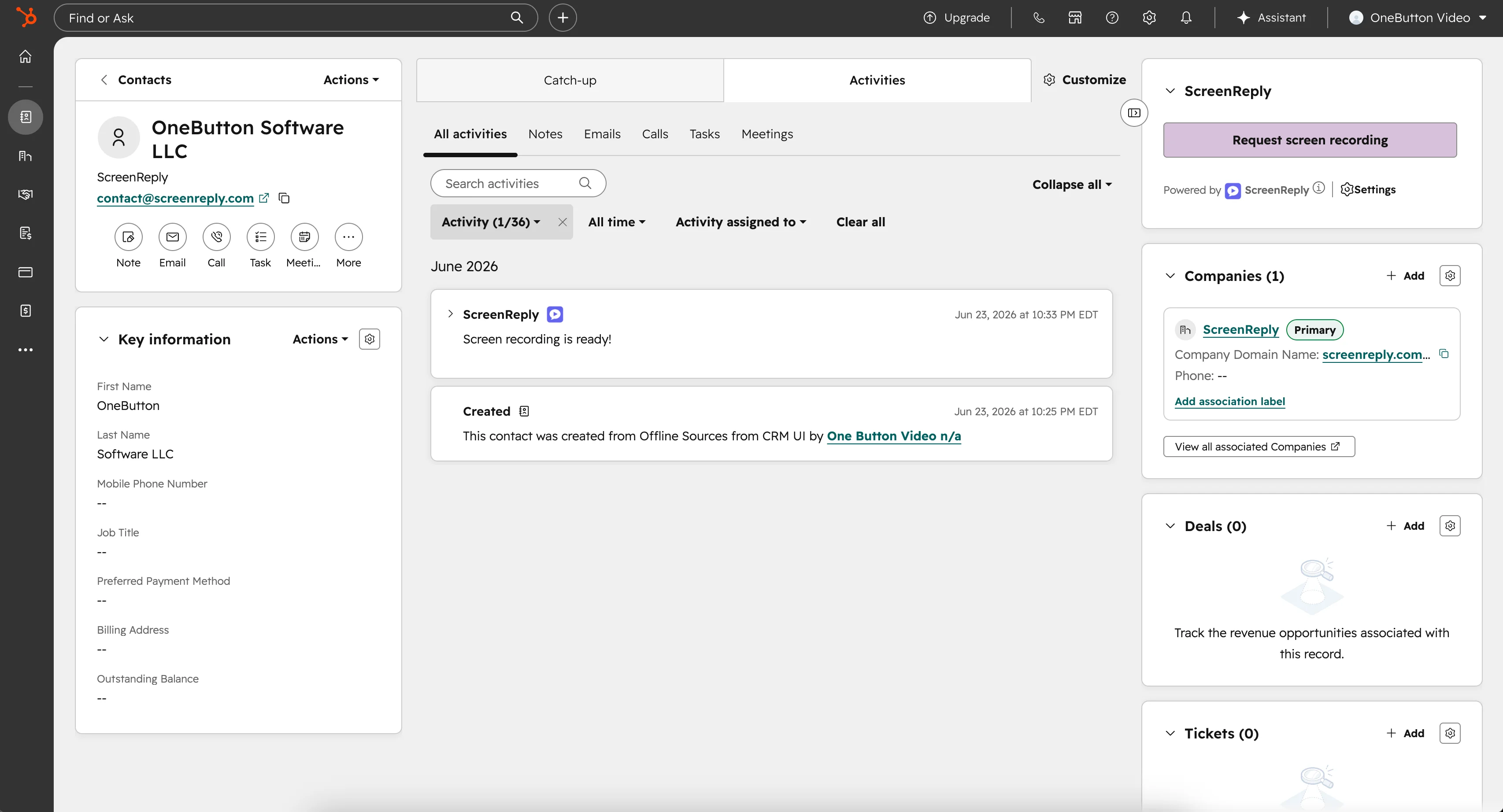
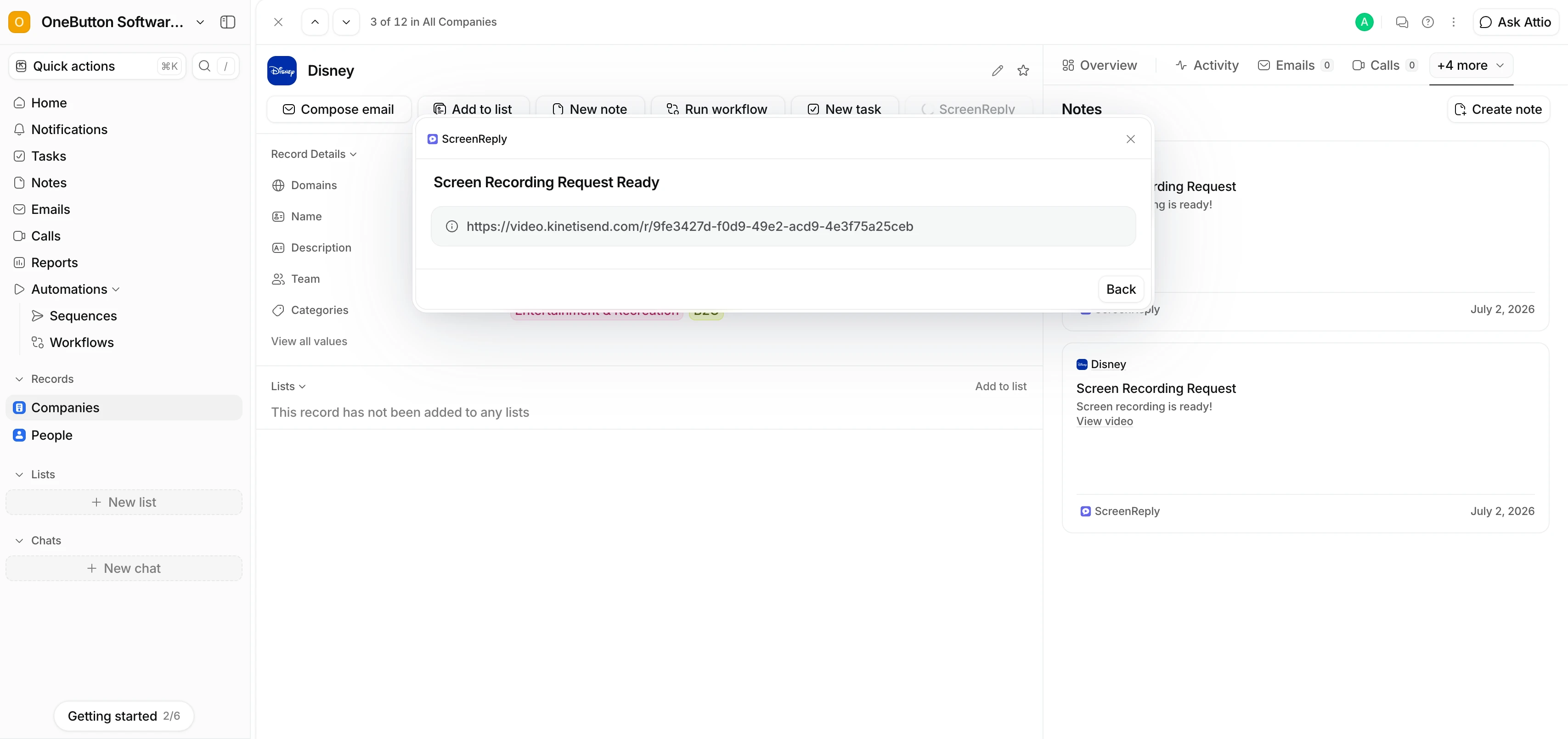
Create a request link directly from the ScreenReply dashboard, or use our native integrations to generate links without ever leaving your active ticket.
2. Customer records the issue
See exactly what your customer is experiencing. They just click the link and start recording natively in their browser.
- One-click recording for every customer
- No login, browser extension, or downloads
- Works across all major browsers
3. Review and solve instantly
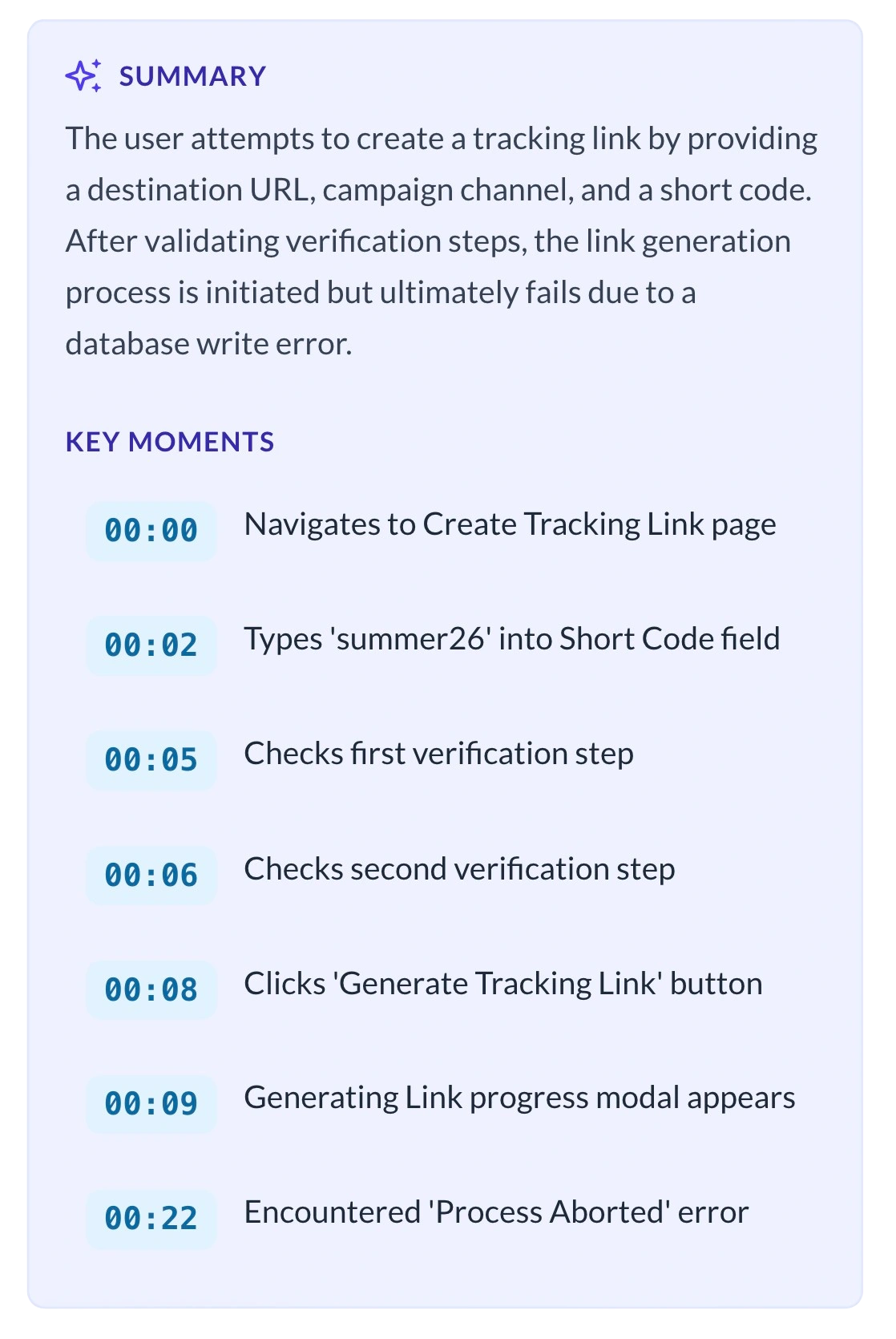
We'll notify you as soon as it's ready. Don't waste time watching the whole video - our AI instantly generates a text recap with clickable timecodes.
- AI Summary & Transcription
- Clickable timecodes to jump to the key moments
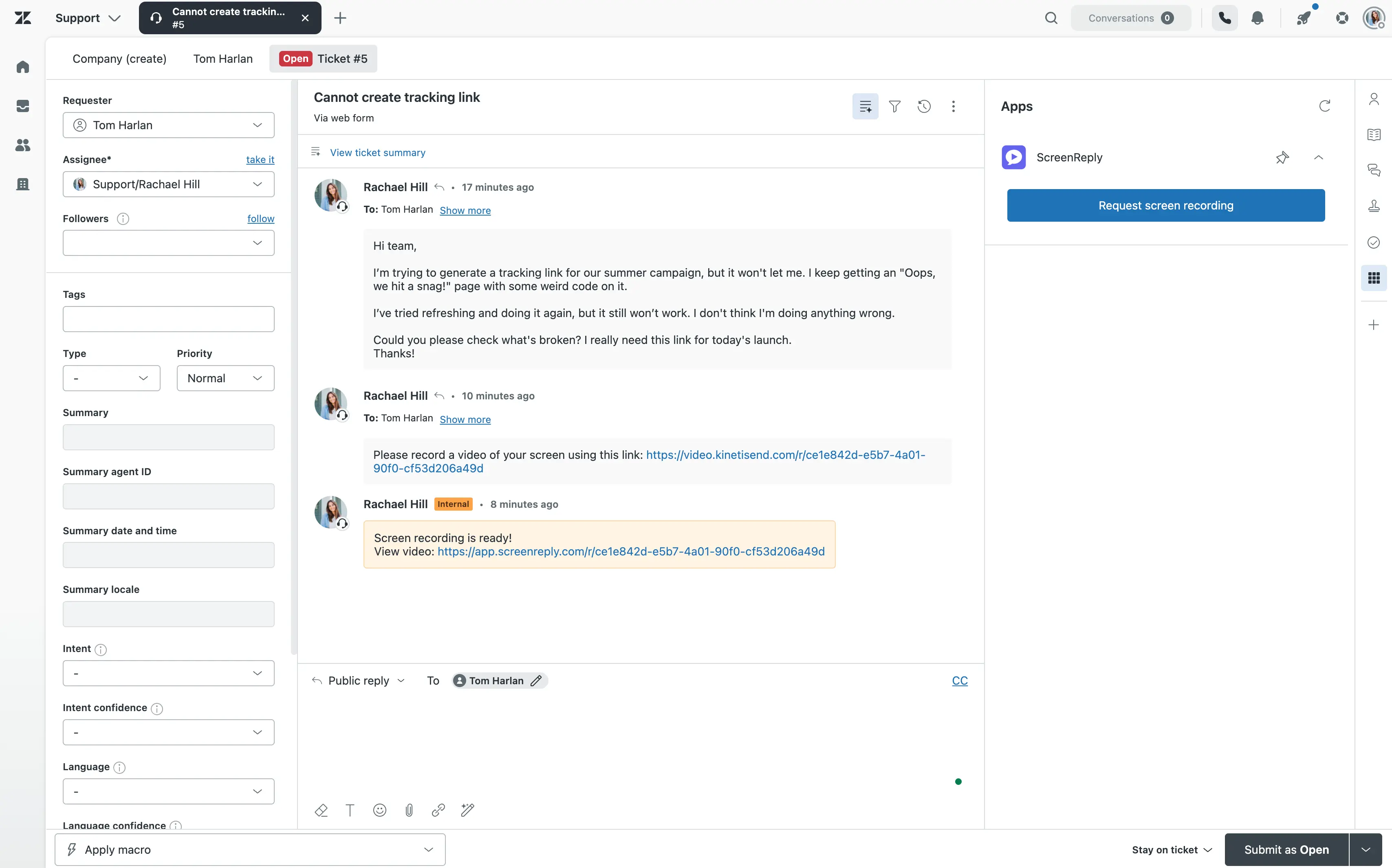
- Attached directly to your support ticket
100% White-Labeled Experience
When asking customers to record their screens, trust is everything. ScreenReply is completely customizable so your customers always feel safe interacting with your brand.
- Match Your Brand IdentityAdd your logo, primary brand colors, and company name directly to the recording interface.
- Zero Vendor FootprintAll mentions of ScreenReply are completely removed. The tool looks and feels exactly as if it was custom-developed by your company.
- Custom DomainsHost all request links on any domain of your choice (e.g., video.yourcompany.com, support.yourcompany.com, or any other subdomain). The choice is entirely up to you.
- Verified Email AlertsSend all email notifications directly from your own domain to maximize deliverability and brand trust.
- Zero Code RequiredSet everything up in under 10 minutes without writing a single line of code.
End the Back-and-Forth Guessing Game
Resolve customer issues on the first reply by replacing confusing text descriptions with clear visual context.
The Old Workflow
- • Ask the customer for a screenshot or video of the issue.
- • Spend time writing complicated instructions on how to record.
- • Wait hours for a reply, only to receive a cropped or blurry image.
- • Ask follow-up questions because the context is still missing.
- • Type out a massive wall of text hoping the customer understands the fix.
- • Resolution takes days and leaves the customer frustrated.
The ScreenReply Way
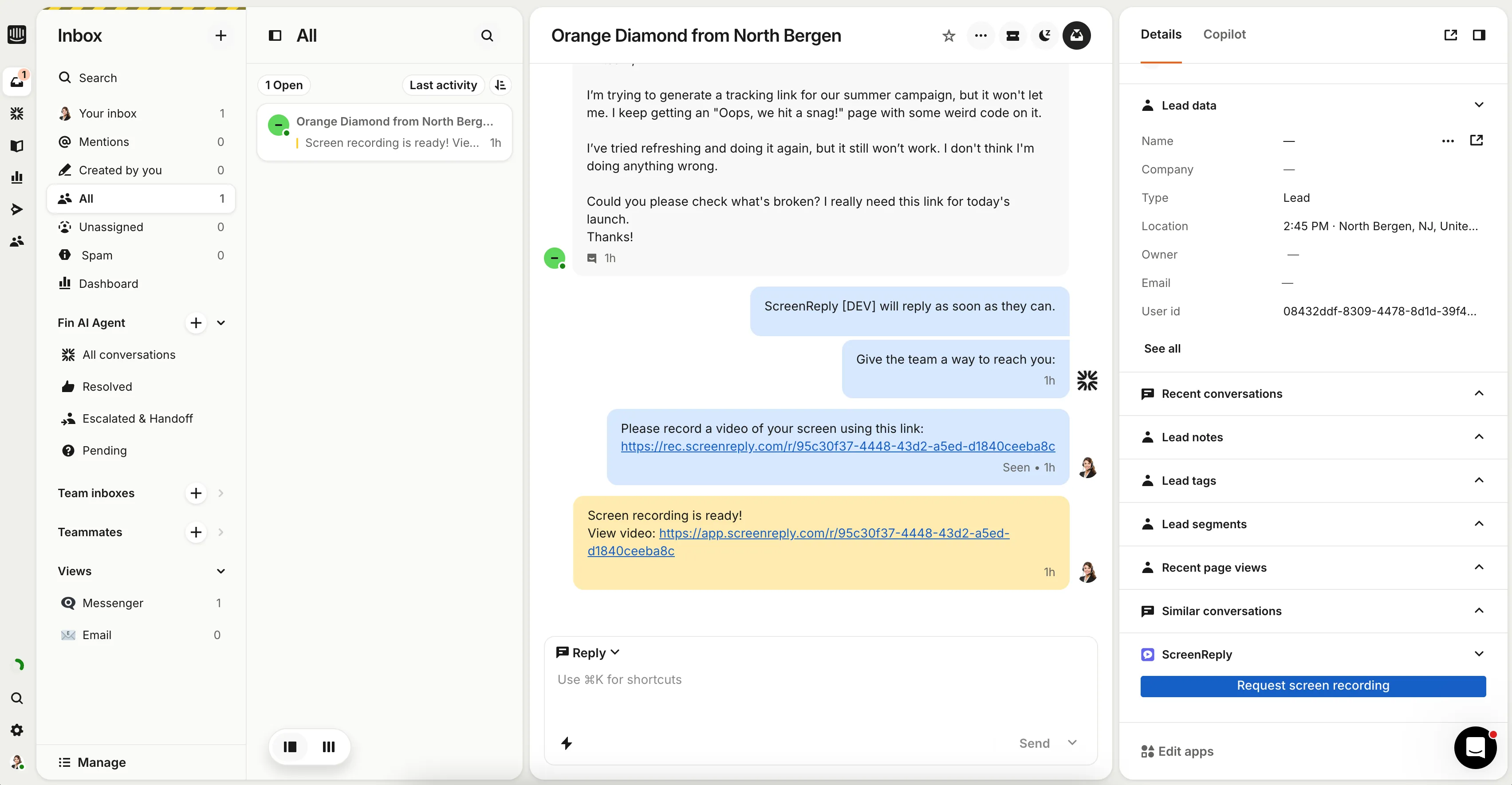
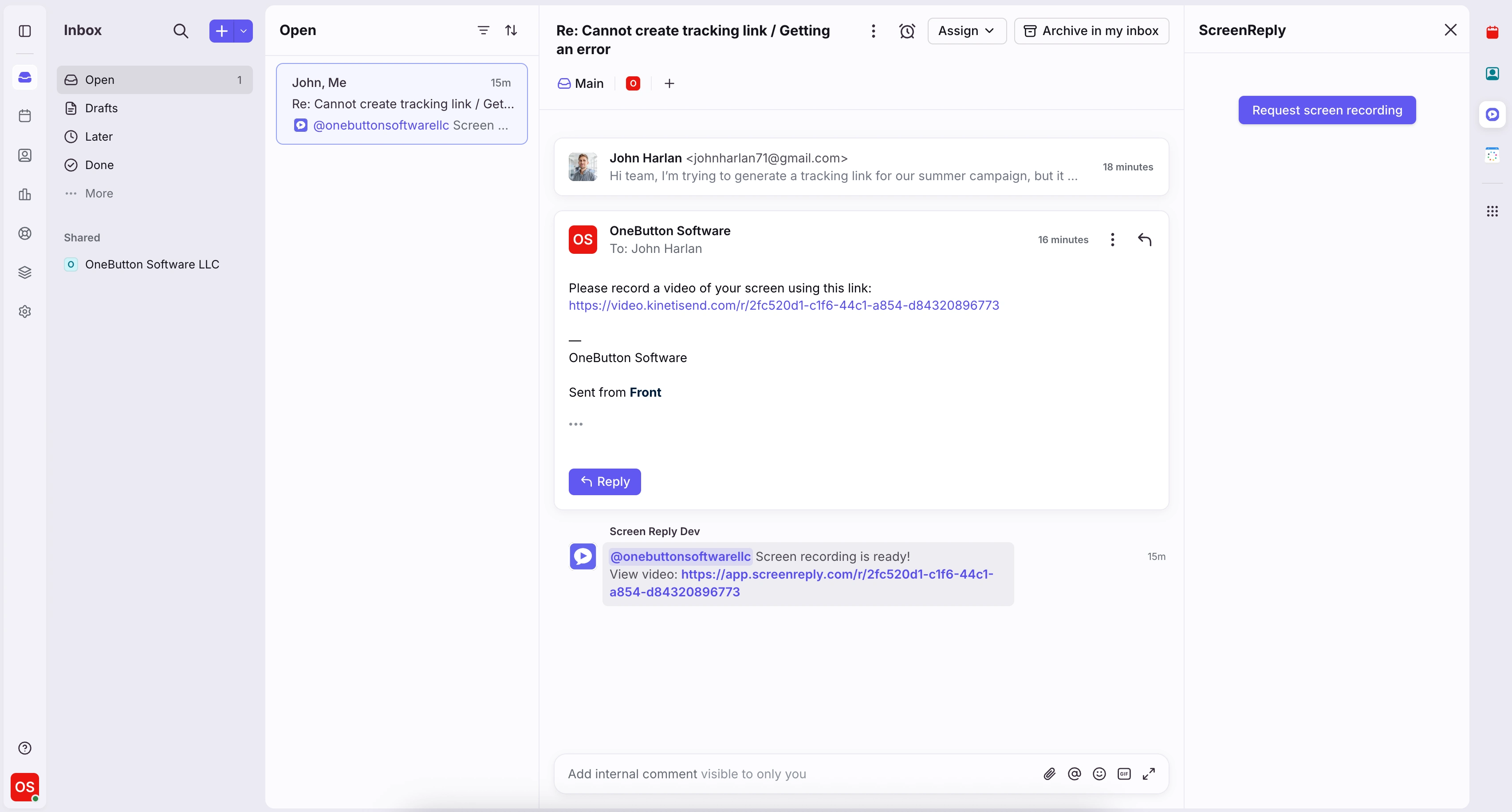
- Send a simple recording link directly from your helpdesk.
- Customer records their screen in one click, no installation required.
- Watch the video and read the AI summary right in the ticket.
- Record your own screen to visually walk them through the exact solution.
- Solve the exact issue immediately on the very first reply.
- Generate requests directly from HubSpot, Attio, Front, Intercom and others. View all →
Frequently Asked Questions
Why is this better than asking customers for screenshots?
Screenshots are frozen in time and miss the actions that led to the confusion. A screen recording shows cursor movement, page navigation, and the exact sequence of clicks. Your agents can see where the customer got stuck instead of guessing.
Will my customers need to download a screen recorder?
No. The core benefit of ScreenReply is its frictionless experience. When you send a request link, the customer opens it in their browser and clicks 'Record'. It works natively in Chrome, Safari, Edge, and Firefox without any extensions or account creation.
Which browsers are supported for recording?
ScreenReply works natively on all major modern desktop browsers including Google Chrome, Apple Safari, Microsoft Edge, and Mozilla Firefox. No plugins or extensions are required for the customer to start recording.
How does the AI summary save time?
Instead of watching a full video, agents can read a text summary generated by AI the moment the video is uploaded. The AI also generates clickable timecodes, so if you need visual proof, you can skip straight to the exact mark where the error actually happens.
Can I use ScreenReply with my existing helpdesk software?
Yes, ScreenReply connects directly with Zendesk, Front, Intercom, HubSpot, and others. You can generate recording links and review videos without leaving your helpdesk. Please visit our Integrations page to see the full list and current status.
Can support agents also record their screen to reply to customers?
Yes! While requesting videos from customers is our most popular feature, your support agents can easily record their own screen to walk a customer through a setup or demonstrate a solution, and send the link back in the ticket. The customer doesn't need to install anything to watch the video, and just like inbound requests, your video will be enhanced with an AI summary and clickable timecodes for their convenience.
Can I customize the recording page to match our brand?
Absolutely. Establishing trust is crucial when asking customers to record their screens. ScreenReply allows you to white-label the recording interface. Your customers will see your company's logo and brand colors, reassuring them that they are interacting safely with your support team.
How long are the screen recordings stored?
If you use our default cloud storage, recordings are securely kept for 60 days. If you connect your own S3-compatible storage (like AWS, Google Cloud, or DigitalOcean), your recordings are stored indefinitely on your own infrastructure.
Boost your support team's efficiency today
Give your support team the tools to resolve tickets on the first reply with visual evidence.
14-day free trial. Unlimited recordings.