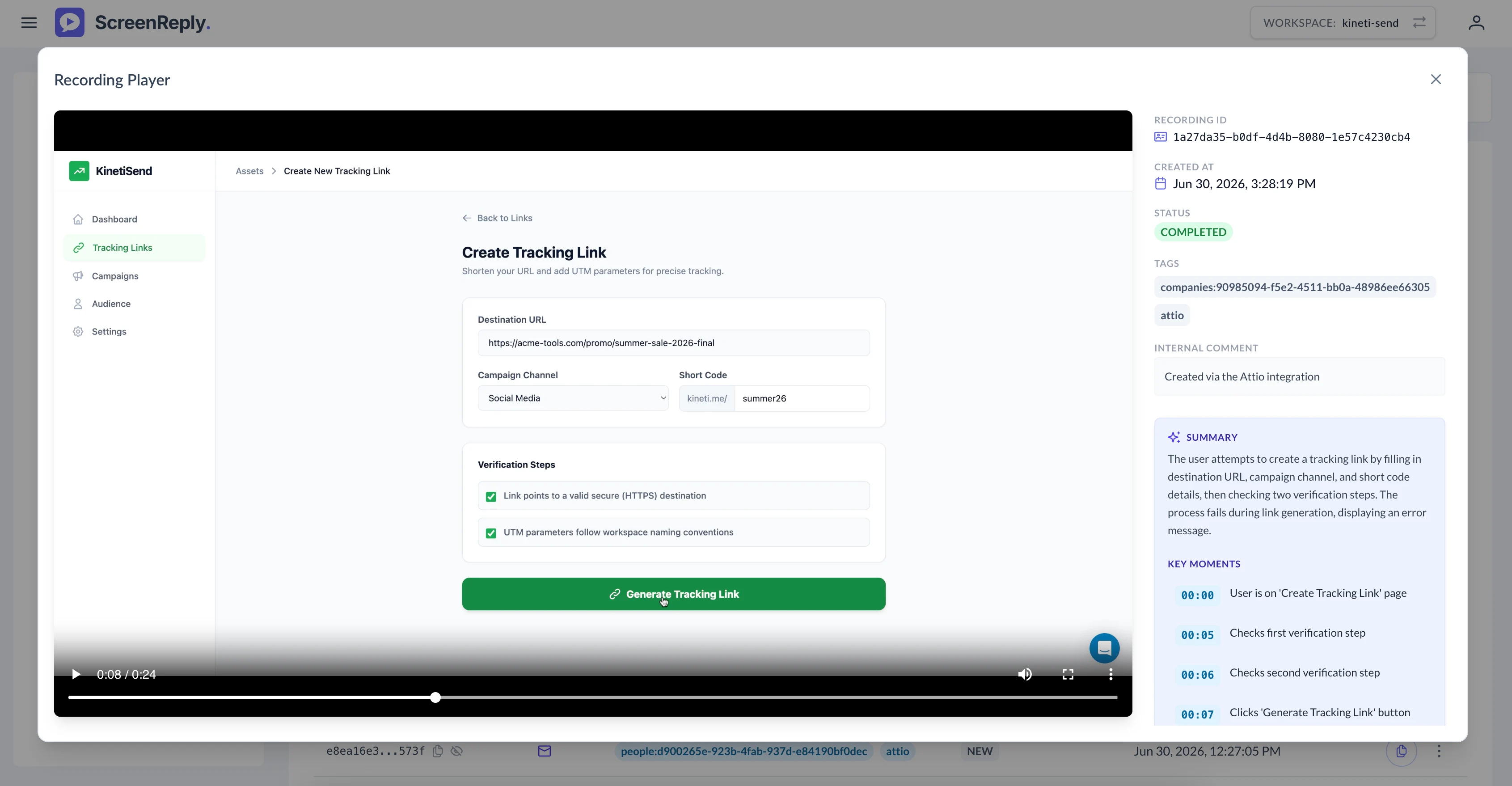
Attio Integration
ScreenReply upgrades your Attio workspace by letting you and your customers share screen recordings with each other to communicate more effectively. Instead of writing long explanatory emails, you can launch the app directly from a Person or Company record to record your own screen or instantly request a video from your client. It’s the fastest way to get everyone on the same page.
See this integration in action and discover how to let clients share their screen directly in Attio.
Installation & Setup
To kickstart the process, browse the official Attio App Store , locate the ScreenReply listing, and click the Install button. This will initiate the external installation flow.
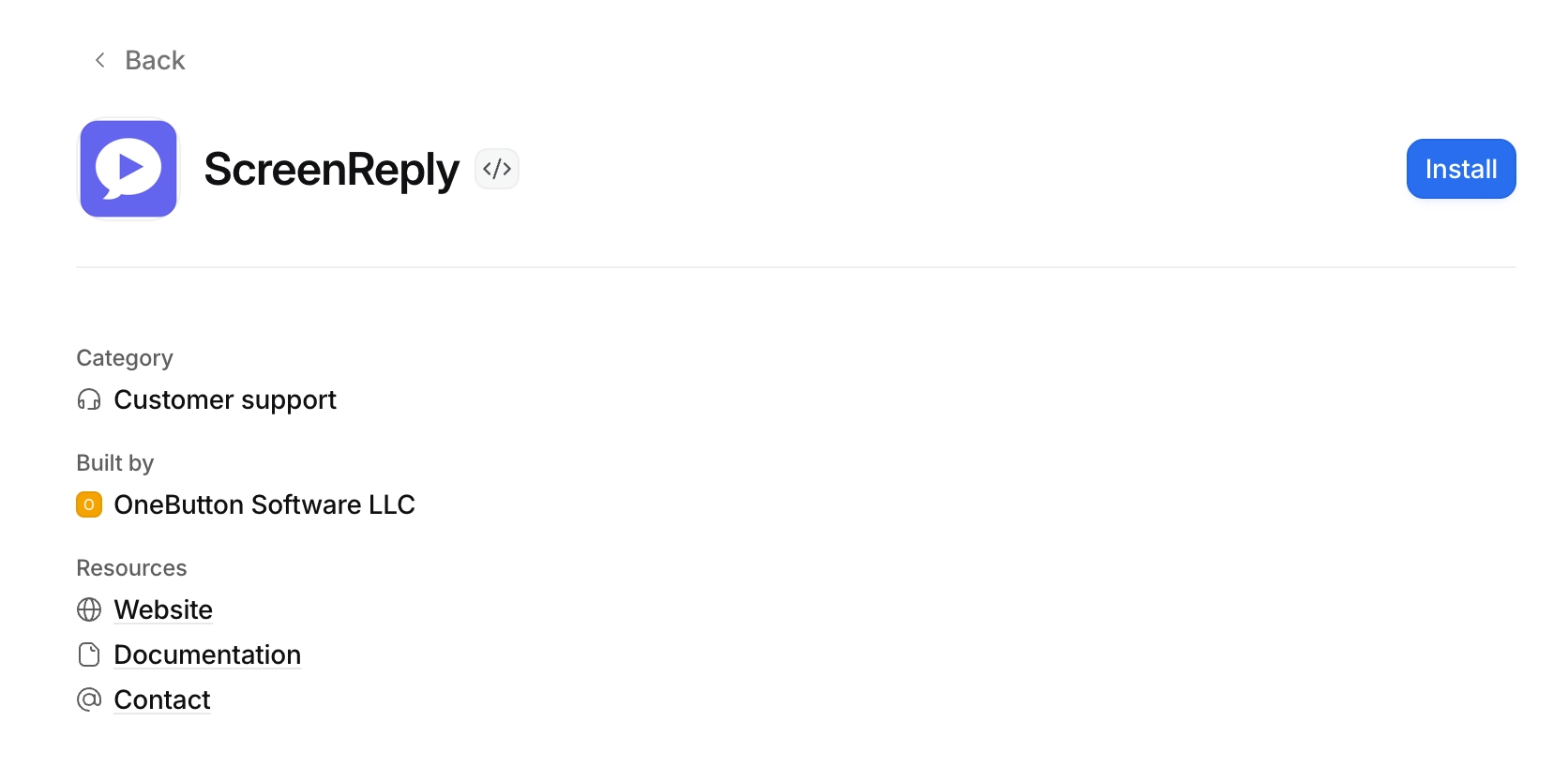
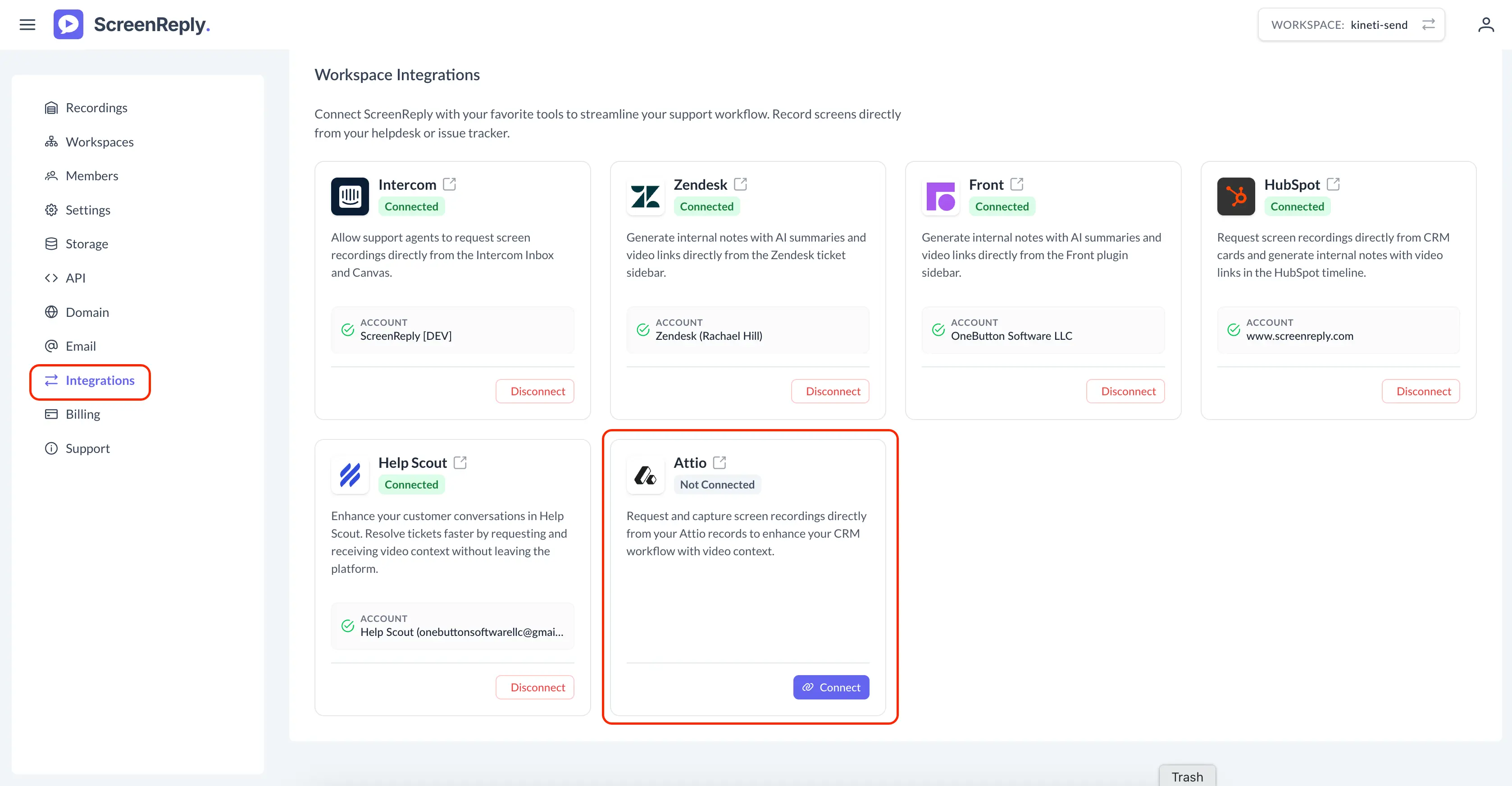
You will be routed to ScreenReply. Here, register a new account or sign in to your existing profile. Upon successful authentication, navigate to the Integrations section from the main menu.
Within your Integrations panel, search for the Attio module and click the Connect button to bridge the two platforms.
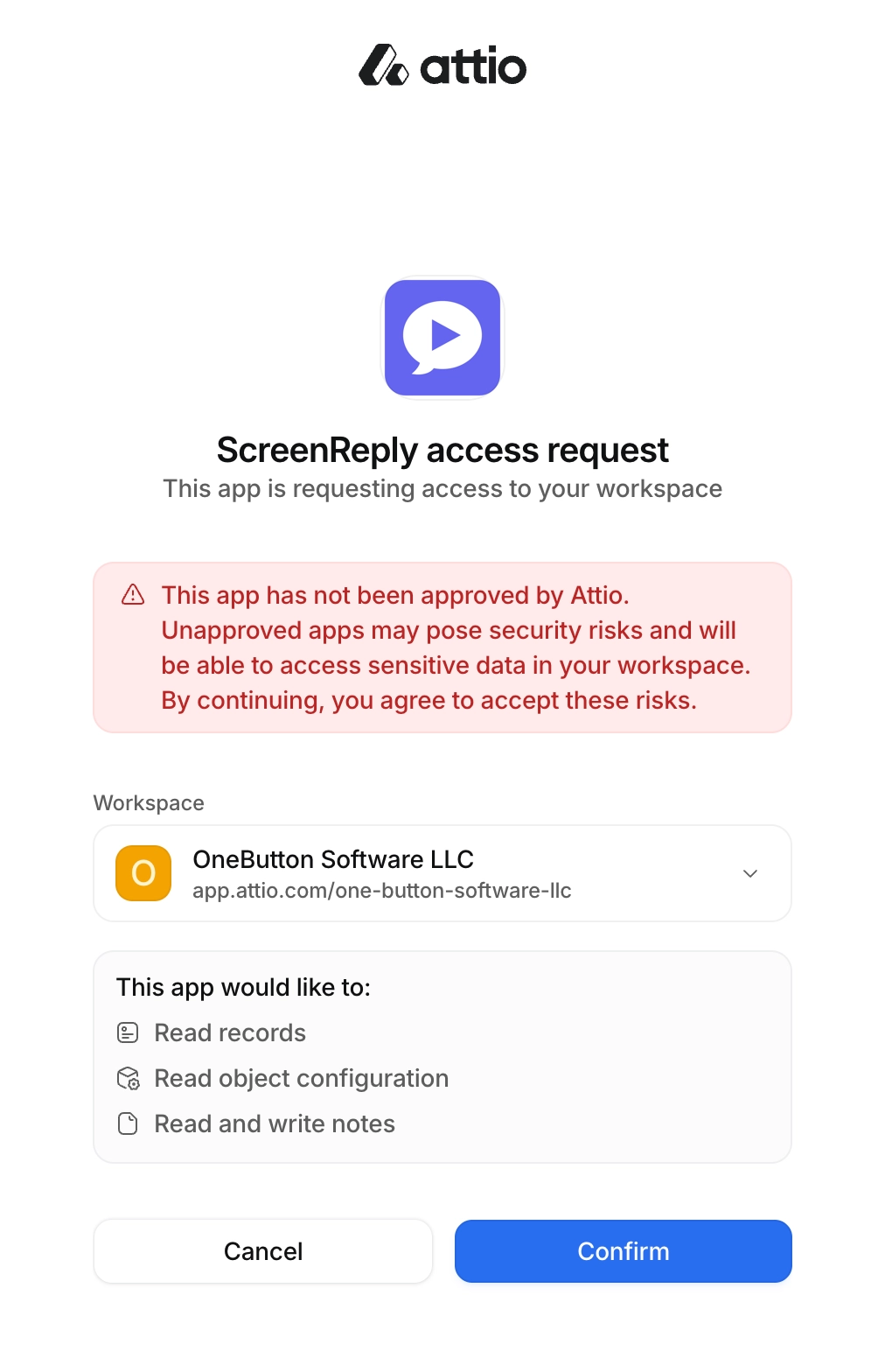
A standard OAuth window will appear. Review the requested permission scopes and authorize ScreenReply to securely interact with your CRM data.
After authorization is granted, click the Setup button on the Attio integration card in ScreenReply. This reveals your proprietary authentication token—copy this value to your clipboard.
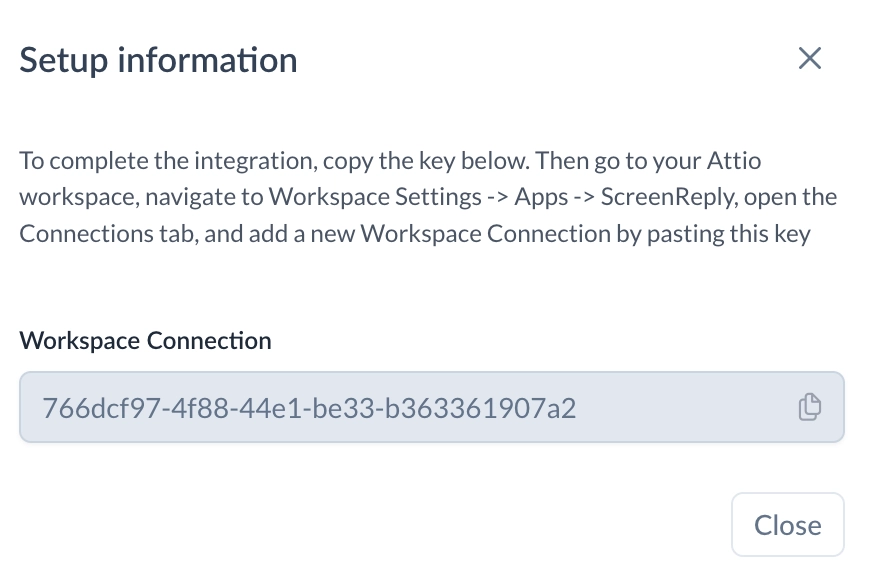
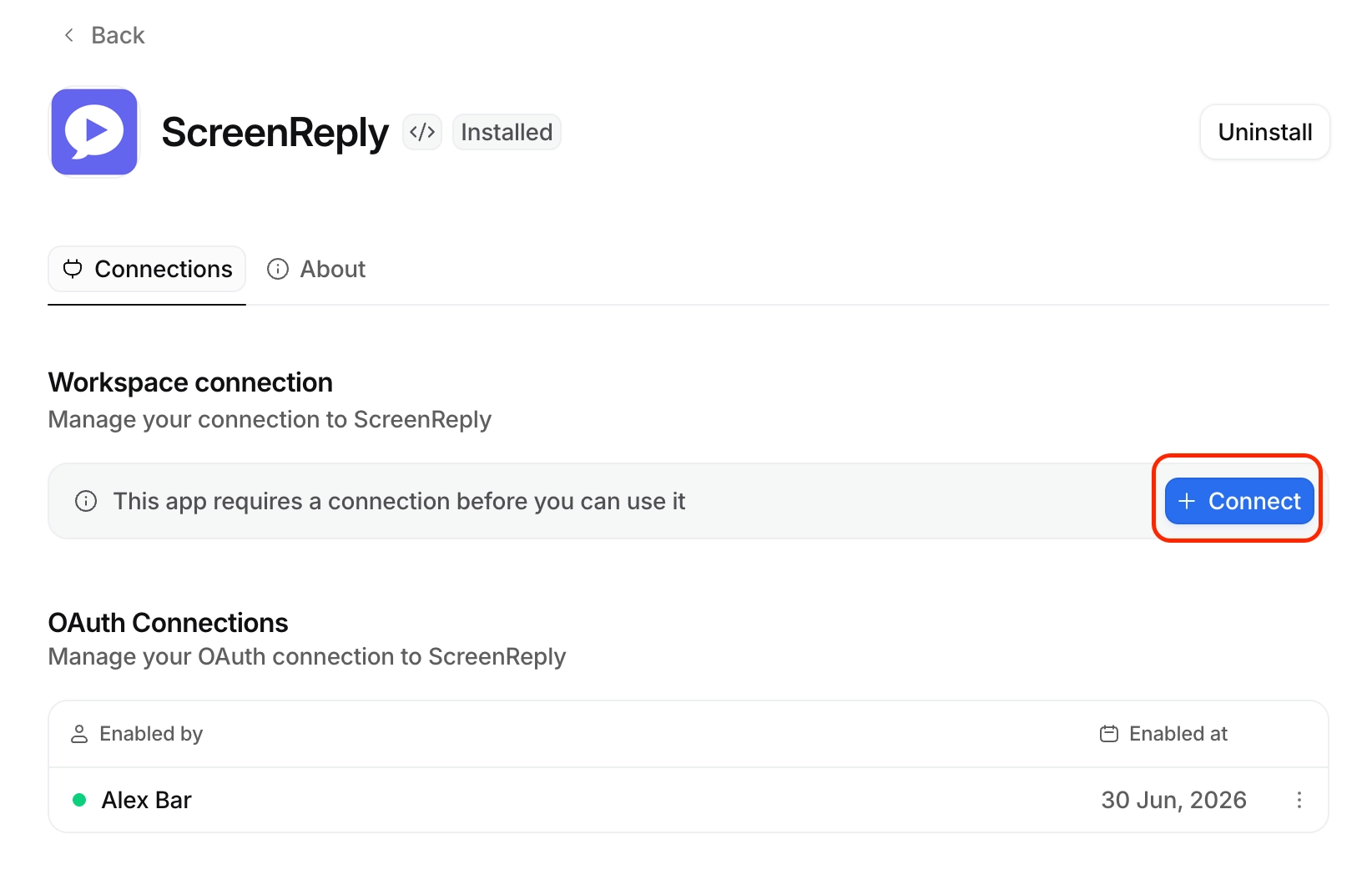
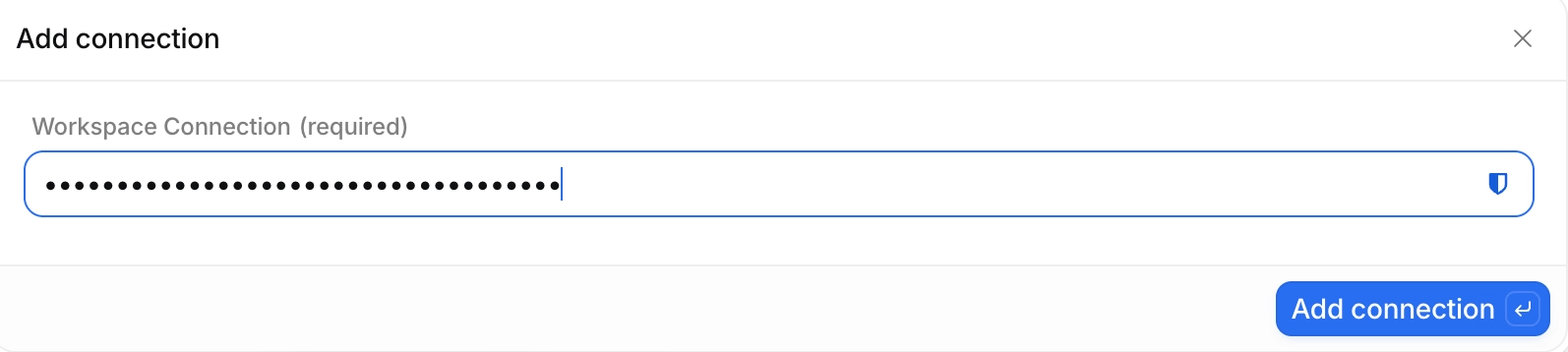
Finally, return to your Attio environment. Access the configuration settings for the installed ScreenReply app, locate the Workspace connection input field, and paste your copied token to finalize the setup.
How to Use
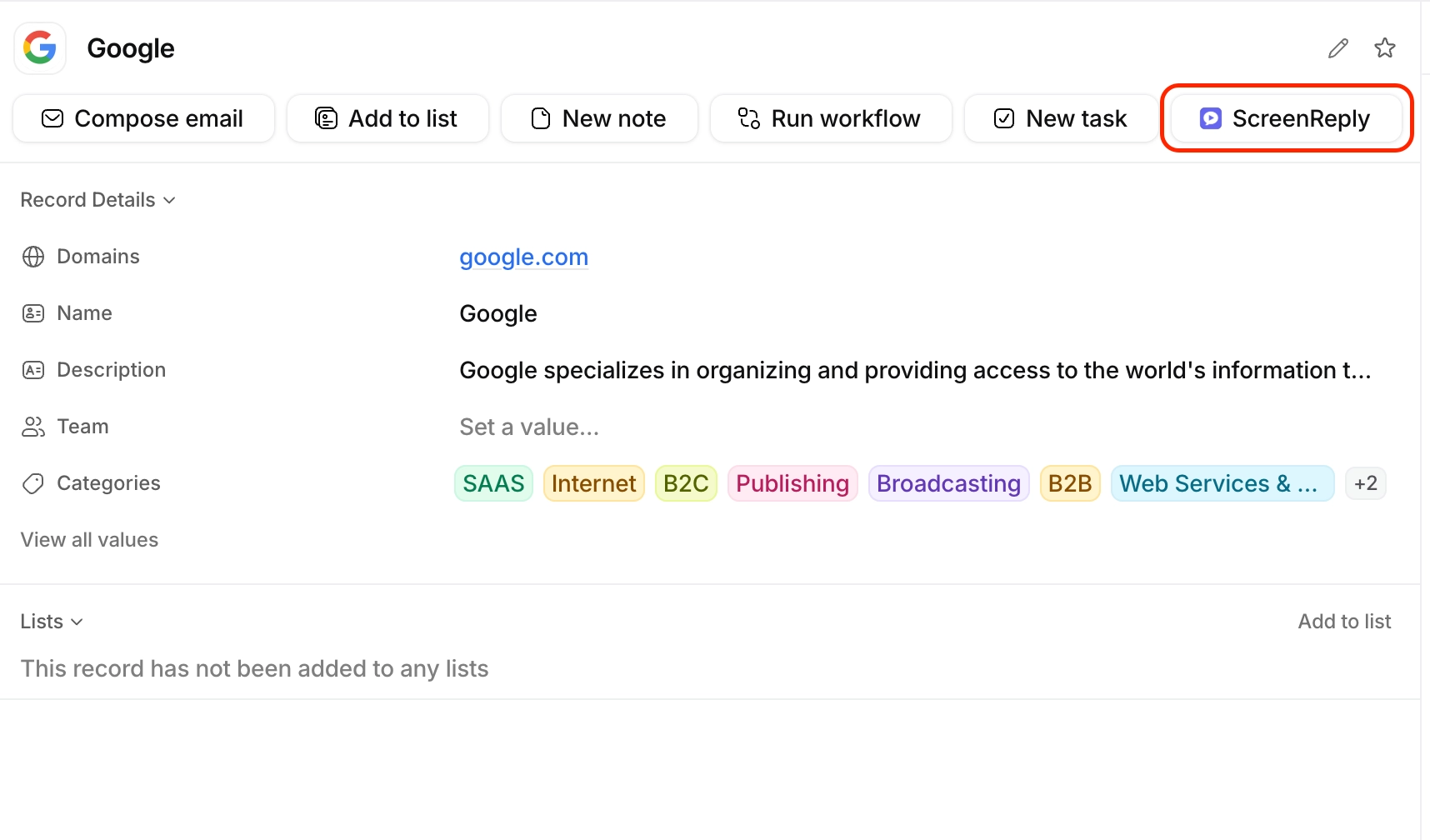
Navigate to any Person or Company record in your Attio workspace. In the quick actions menu at the top, click the ScreenReply icon to open the application dialog.
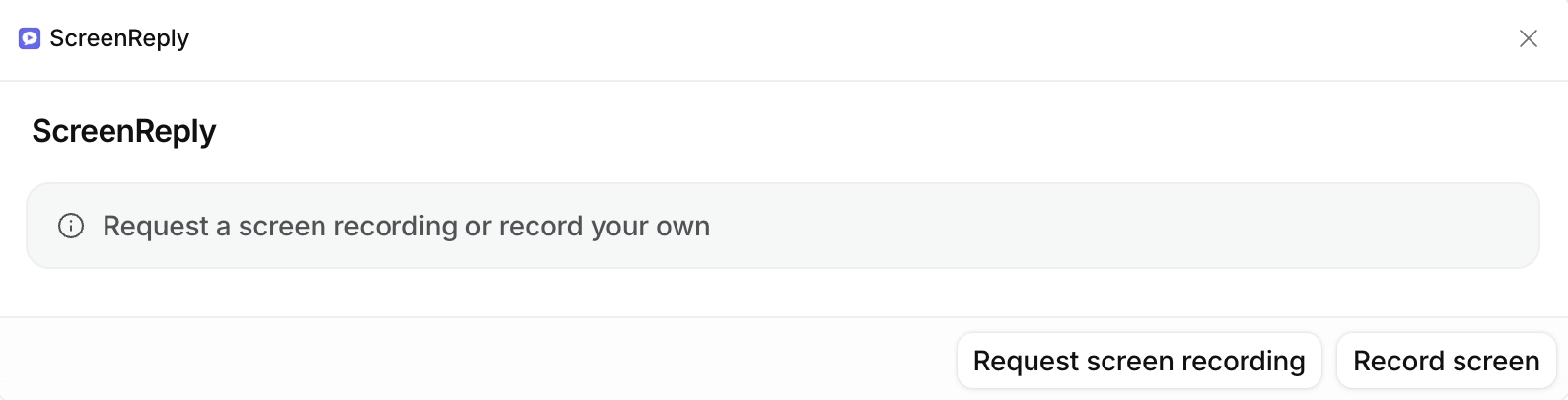
You will be greeted with a streamlined interface offering two options. Click Request screen recording to instantly generate a secure, unique URL tailored for your customer. Alternatively, click Record screen to capture a video yourself.
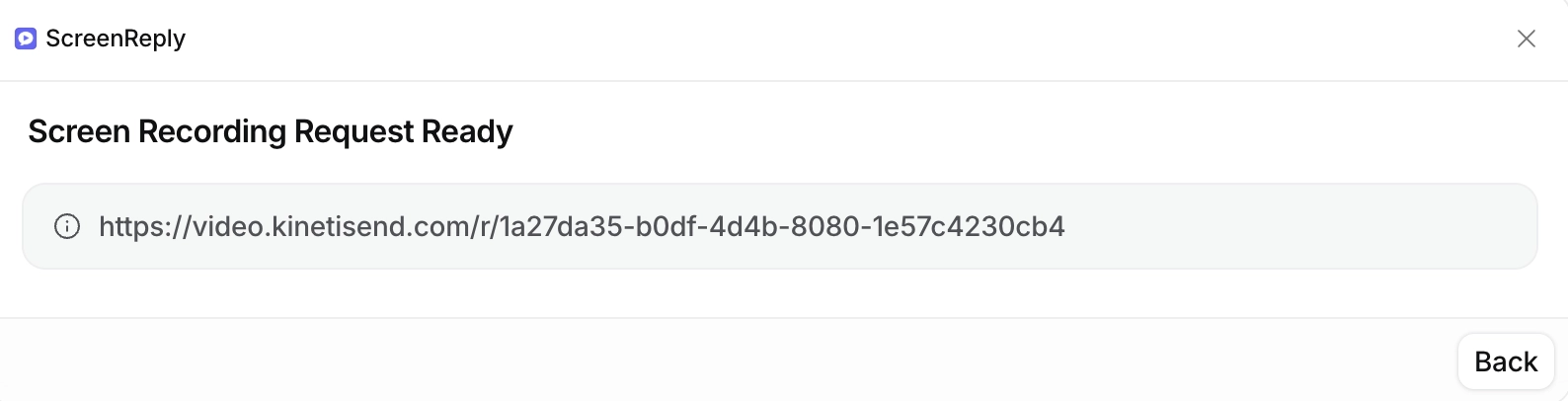
When your link is ready, it will appear right on your screen. Just copy and paste it directly into your email or message to the client, allowing them to effortlessly record their issue and provide you with instant visual context.
As soon as the user finishes recording, ScreenReply automatically creates a Note on the corresponding Attio record containing a link to the video.
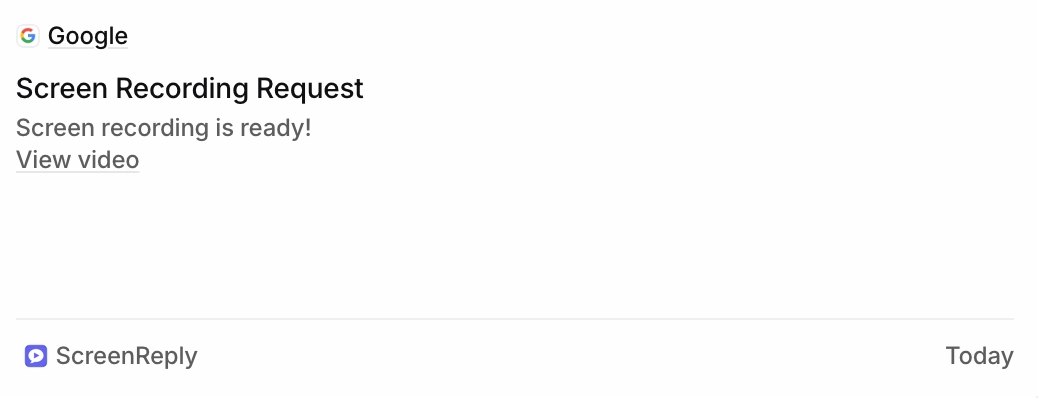
Clicking this link opens a dedicated player featuring an AI-generated summary and clickable timestamps, allowing you to instantly jump to key moments and resolve the inquiry faster.