
How to Stop Back-and-Forth Communication in Zendesk Tickets
Fri Jun 19 2026
Introduction: The Endless Zendesk Ping-Pong Nightmare
If you manage a customer support or customer success team, your primary enemy is friction. And nowhere is friction more obvious—and more expensive—than in the dreaded “ticket ping-pong” cycle inside your Zendesk instance.
It starts innocently enough. A customer submits a ticket: “The integration mapping tool is broken. It won’t let me save my layout.”
Your support agent claims the ticket and realizes there isn’t enough context to escalate the issue to engineering. They apply a standard Zendesk Macro: “I’m sorry to hear you’re experiencing this! Could you please provide the exact steps you took, what browser you are using, and a screenshot of the error?”
Four hours later, the customer replies with a cropped screenshot of a greyed-out button and a vague description: “I just clicked save and nothing happened. I’m on Chrome.” The agent attempts to reproduce the issue in their own environment. It works perfectly. They reply again: “I cannot reproduce this on my end. Could you please clear your cache, open the developer console, and see if there are any red errors when you click the button?”
By this point, the customer is furious. They are paying for a premium B2B SaaS product, yet they are being forced to act as an unpaid QA tester. What should have been a 15-minute resolution stretches into a three-day, seven-reply ordeal.
This asynchronous back-and-forth destroys your most critical Zendesk metrics: Time to Resolution (TTR) skyrockets, First Contact Resolution (FCR) hits zero, and your Customer Satisfaction (CSAT) scores plummet.
In this comprehensive guide, we will break down why text descriptions and static screenshots are failing your Zendesk agents, the hidden operational costs of the “clarification loop,” and how implementing zero-friction asynchronous video evidence is the ultimate strategy to stop back-and-forth communication for good.
The Anatomy of the Clarification Loop
To fix the problem, we first need to understand why it happens. The communication breakdown in Zendesk tickets rarely stems from agent incompetence; it is a structural failure caused by an Evidence Gap.
Customers and support agents speak fundamentally different languages. A customer experiences a software issue as an interruption to their workflow (e.g., “I can’t generate the Q3 report”). An agent and the engineering team behind them view the issue as a specific sequence of technical failures (e.g., “A null pointer exception occurs when filtering the data table by a custom date range in Safari”).
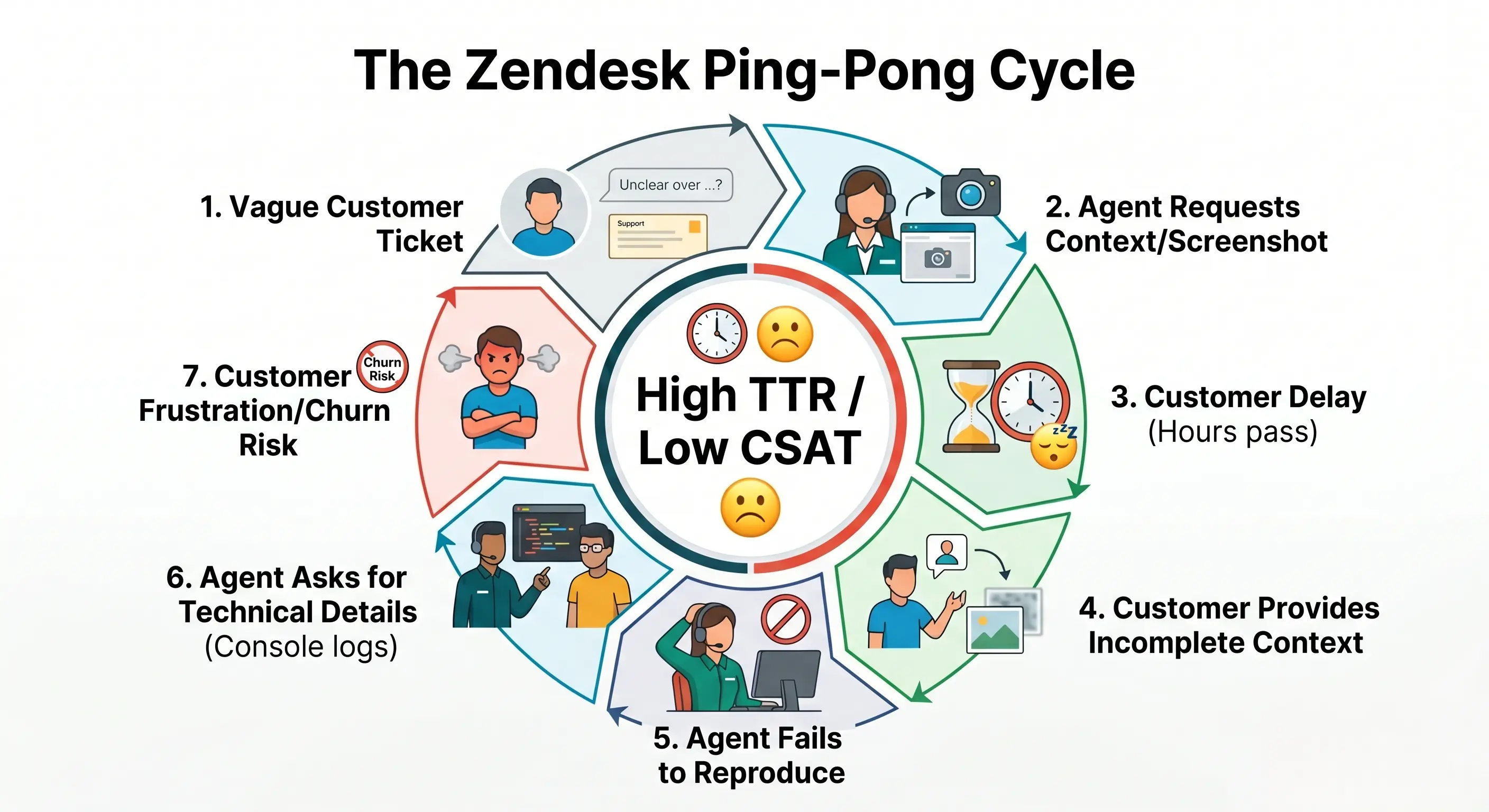
When you rely on text to bridge this gap, you are asking the non-technical customer to accurately translate complex UI interactions, load times, and dynamic software states into written words. It is an impossible ask.
The Delusion of the “Please Send a Screenshot” Macro
When text fails, Zendesk agents inevitably ask for a screenshot. Unfortunately, in the modern era of dynamic single-page applications (SPAs) built on React, Angular, or Vue, a screenshot is almost as useless as text.
A screenshot is a static artifact. It captures the symptom of a bug frozen in a single millisecond. It tells you absolutely nothing about the cause.
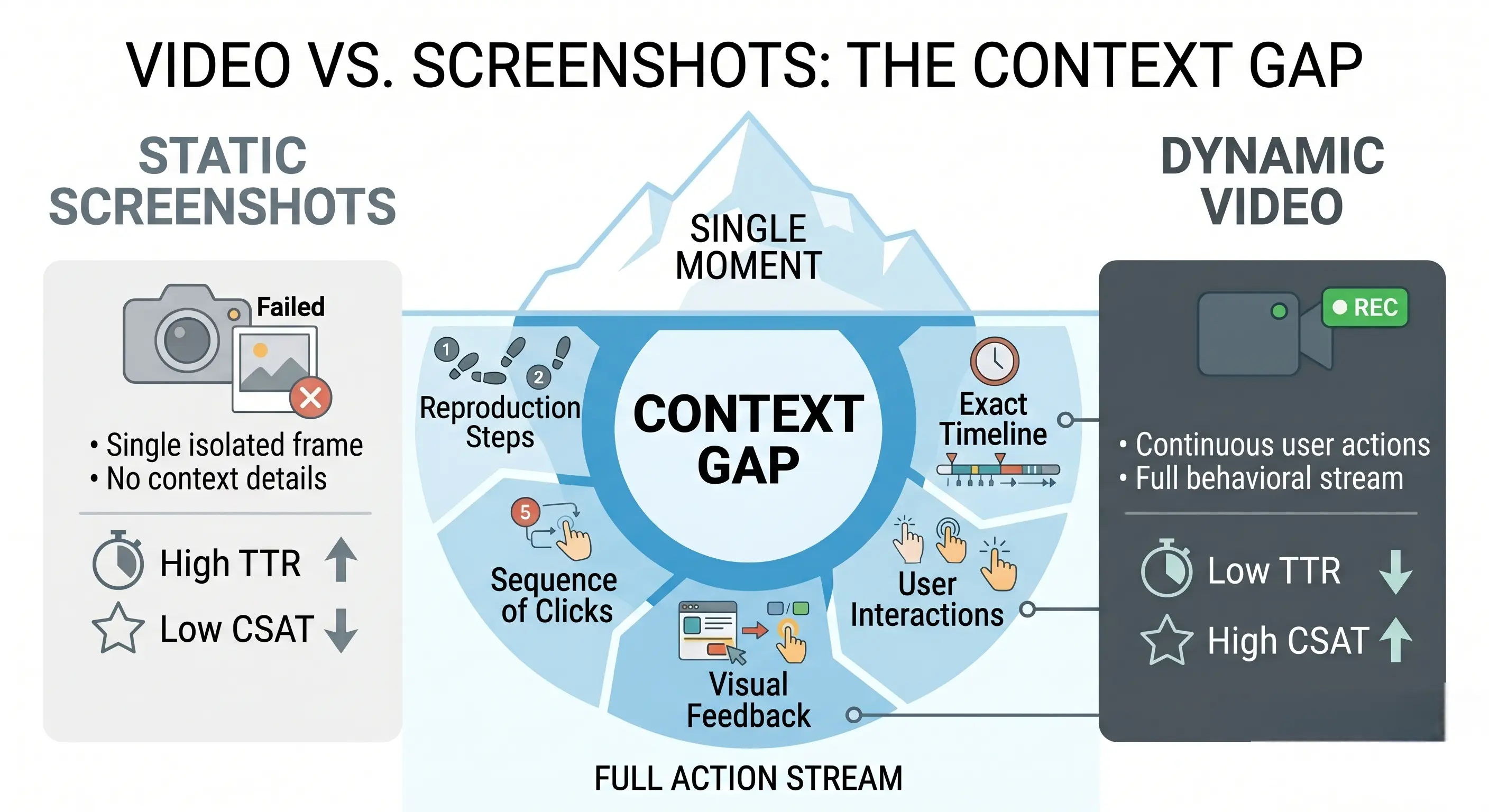
If a modal window refuses to close, a screenshot only proves the window is open. It doesn’t show that the user rapidly double-clicked the trigger, causing a race condition. It doesn’t show the background API call that failed and silently broke the page state.
When your Zendesk agents rely on screenshots, they are forced to guess what happened before the screenshot was taken. When they guess wrong, the ticket bounces back to the customer.
The Paradigm Shift: Asynchronous Video Resolution
If the root cause of ticket ping-pong is missing temporal and behavioral context, the solution is obvious: capture the sequence of events visually.
Transitioning your Zendesk workflows from static images to asynchronous video evidence completely eliminates the interpretation gap. When an agent can watch the customer’s exact mouse movements, click paths, and screen transitions, “Cannot Reproduce” becomes a phrase of the past.
- Undeniable Proof: The agent sees exactly what the user sees. The conversation instantly shifts from trying to understand the problem to fixing the problem.
- Actionable Engineering Escalations: Developers no longer reject Jira tickets for lacking “Steps to Reproduce.” The video is the reproduction.
- Restored Customer Goodwill: Instead of giving the customer a homework assignment of clearing caches and pulling console logs, you take the burden of diagnosis off their shoulders.
Eliminating Friction: The ScreenReply Zendesk Integration
Historically, asking a customer for a screen recording introduced more friction than it solved. Forcing a frustrated user to leave Zendesk, download a third-party recording app (like Loom or OBS), install a Chrome extension, record a video, wait for an MP4 to process, upload it to a cloud drive, and paste a link into the ticket is a terrible customer experience.
To actually reduce TTR, the video creation process must be easier than taking a screenshot.
This is exactly why we built the ScreenReply integration for Zendesk. It is designed specifically to capture rich visual context with absolute zero friction for the end-user.
How the “Zero-Install” Workflow Stops Ping-Pong
ScreenReply integrates directly into the Zendesk Agent Workspace, allowing your team to gather video evidence without ever breaking the flow of communication.
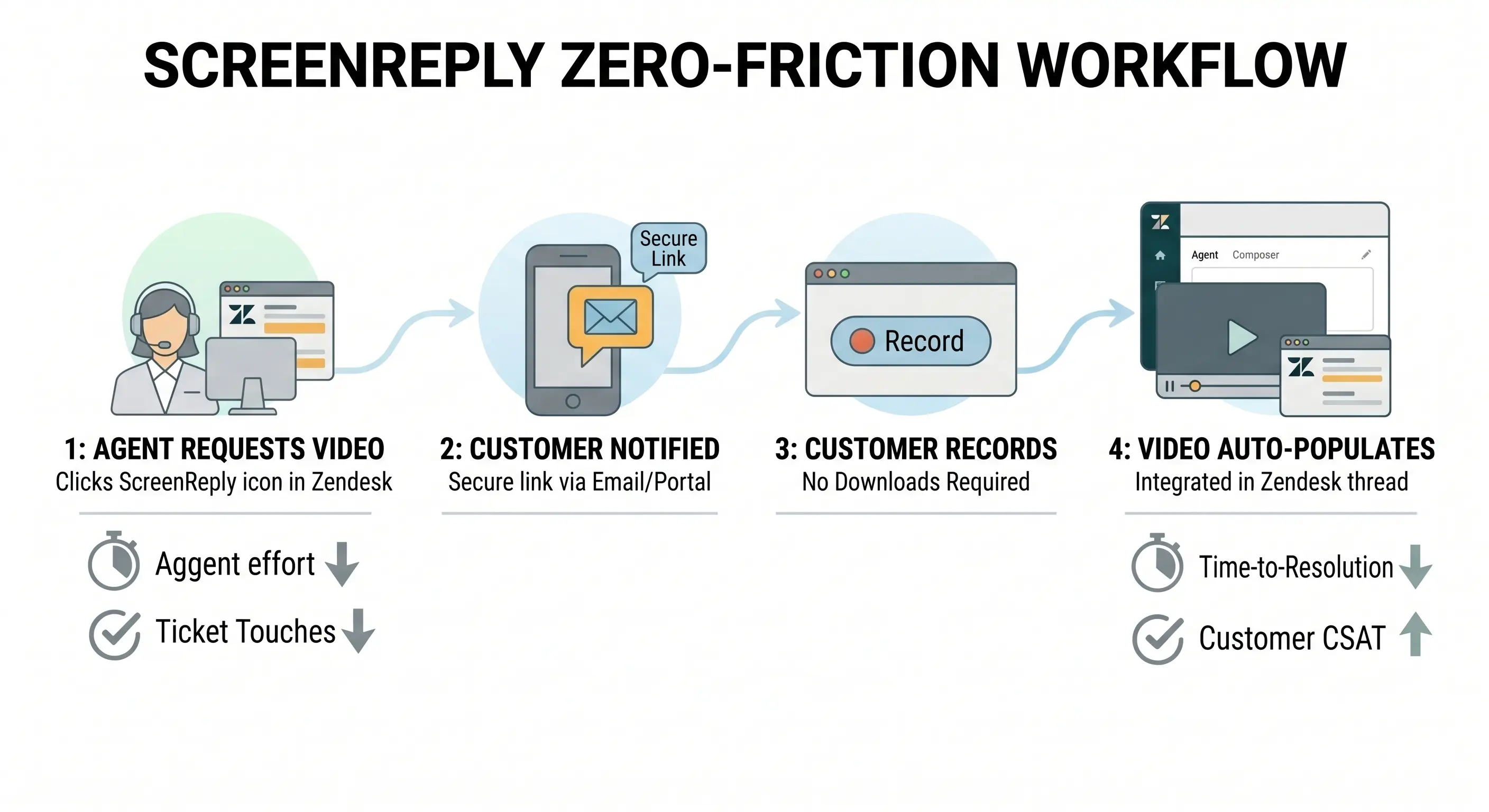
- One-Click Requests: When a vague ticket arrives, the agent clicks the ScreenReply app in the Zendesk sidebar. A customized, secure recording link is inserted into their reply.
- Zero-Install Recording: The customer clicks the link. Because ScreenReply uses native WebRTC browser APIs, there are absolutely no extensions, plugins, or software downloads required. The customer shares their screen instantly, bypassing rigid corporate IT firewalls.
- Seamless Ticket Sync: The moment the customer stops recording, the video is automatically processed and appended directly to the existing Zendesk ticket as an internal note or public reply. The agent watches the playback right inside Zendesk.
By making video capture effortless, completion rates skyrocket. You get the dynamic context you need to solve the ticket on the second touch, permanently ending the ping-pong cycle.
The Support Evidence Matrix
Here is how different methods of gathering evidence impact your Zendesk operations:
| Evidence Type | Context Captured | Customer Effort | Agent Reproduction Rate | Impact on TTR |
|---|---|---|---|---|
| Text Description | Vague / Subjective | High (Must write steps) | < 20% | Increases TTR (High Ping-Pong) |
| Static Screenshot | Low (Final state only) | Medium | ~ 40% | Increases TTR (High Ping-Pong) |
| Traditional Video Apps | High | Very High (Requires installs) | ~ 85% | Stalls TTR (High Drop-off Rate) |
| ScreenReply (Zero-Install) | Perfect (Visual & Temporal) | Extremely Low (1 Click) | > 95% | Dramatically Reduces TTR |
Action Plan: 3 Steps to Video-First Zendesk Workflows
You can’t just install an app and expect behavior to change. To truly stop back-and-forth communication, you need to update your Zendesk operational playbooks.
- Rewrite Your Macros: Audit your Zendesk workspace for any macro containing the word “screenshot.” Replace them with a Video Request Macro.
- Example: “To help our engineering team resolve this for you immediately, please use the secure link below to record a quick 30-second video of the issue. You do not need to install any software to do this.”
- Leverage Zendesk Triggers: Identify ticket categories that historically require the most back-and-forth (e.g., “Bug Report”, “Integration Issue”). Set up a Zendesk Trigger to auto-reply with a ScreenReply recording link the moment a ticket is submitted with those specific dropdown values.
- Enforce Engineering Handoff Rules: Implement a policy where agents are not allowed to escalate a UI/UX bug to Jira or the development team without a screen recording attached. This forces the adoption of video and drastically reduces developer pushback.
Conclusion
Every time an agent asks a customer a clarifying question in Zendesk, your company bleeds money through wasted time and degraded customer experience. The “ticket ping-pong” cycle is a symptom of relying on outdated tools—like text and screenshots—to diagnose modern, complex web applications.
If you want to drastically reduce your Time to Resolution (TTR) and improve your CSAT scores, you must close the evidence gap.
By integrating zero-friction, asynchronous video requests into your Zendesk workflows, you empower your customers to show you exactly what is wrong in seconds. You give your agents the undeniable proof they need to solve the issue on the very next reply. Stop guessing, stop asking for screenshots, and start seeing the problem clearly.
Ready to eliminate Zendesk ticket ping-pong forever? Equip your support team with the fastest, easiest way to gather dynamic video evidence from customers, entirely friction-free.
👉 Install the integration and start using ScreenReply today at screenreply.com/integrations/zendesk.
Frequently Asked Questions (FAQ)
Why does back-and-forth communication happen so often in Zendesk? Back-and-forth (or “ticket ping-pong”) occurs because customers often lack the technical vocabulary to describe dynamic software bugs, and standard text or screenshot replies fail to capture the required reproduction steps, browser state, or console errors.
How does reducing ticket replies impact Zendesk metrics? Eliminating redundant clarification replies directly lowers your Time to Resolution (TTR) and boosts First Contact Resolution (FCR). Fewer touches per ticket also frees up agent bandwidth and significantly improves Customer Satisfaction (CSAT) scores.
Why shouldn’t I just ask customers for screenshots of the issue? Modern web applications are dynamic state machines. A static screenshot only captures the final broken symptom. It completely hides the user’s prior actions, the exact sequence of clicks, and underlying network failures required for engineering to reproduce the bug.
How does the ScreenReply integration for Zendesk solve ticket ping-pong? ScreenReply lets agents request a screen recording directly within a Zendesk ticket. The customer clicks a link and records their screen instantly in their browser. The video—complete with reproduction steps and technical metadata—is automatically attached back to the Zendesk thread.
Do our customers need to install an app or extension to record a video for Zendesk? No. ScreenReply utilizes a 100% “Zero-Install” browser-based architecture. Customers do not need to download software, install Chrome extensions, or create accounts, ensuring zero friction when submitting bug reports.