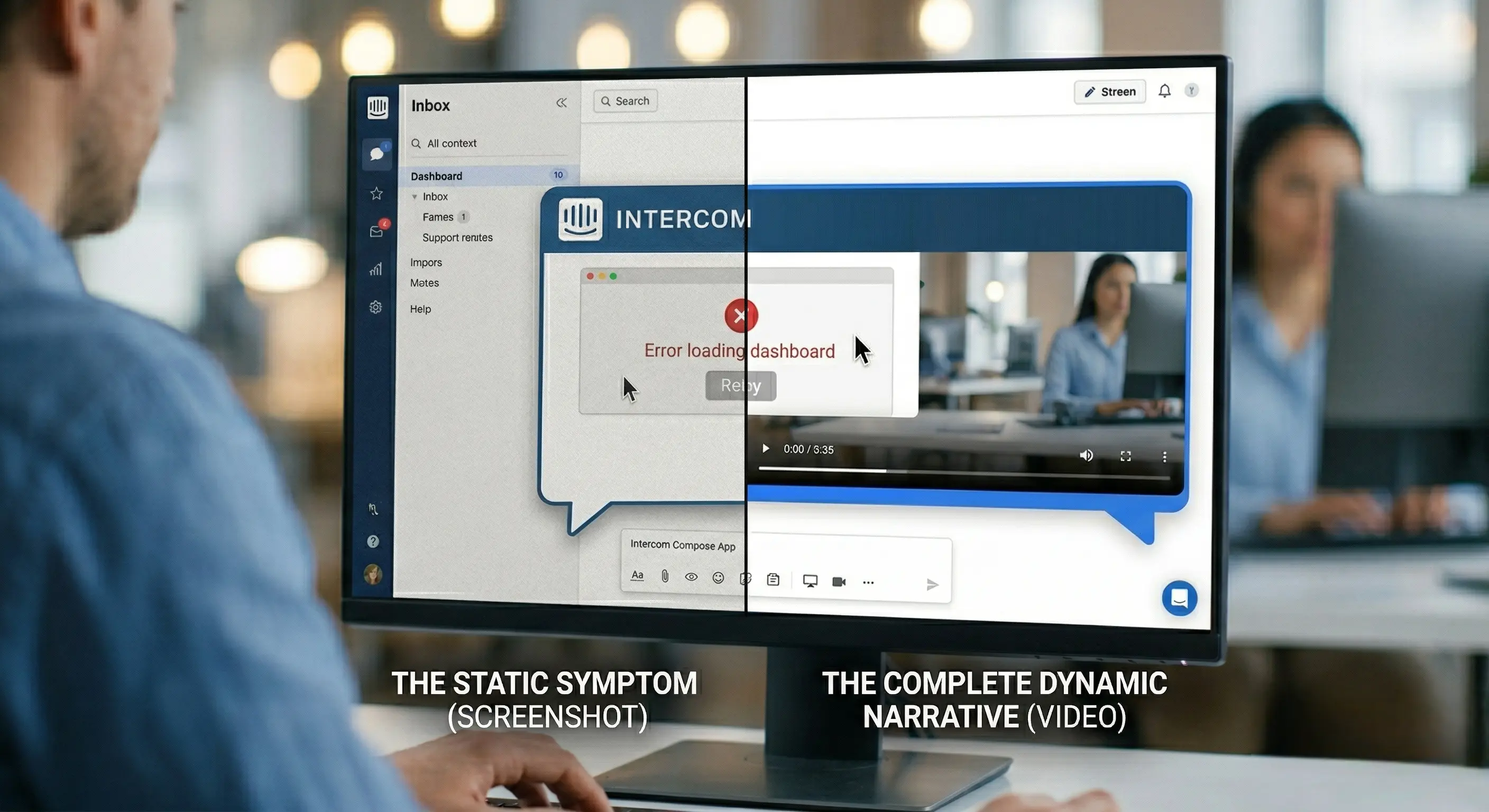
How to Stop Asking Customers for Screenshots of Errors in Intercom
Tue Mar 24 2026
Introduction: The Intercom Inbox Nightmare
It is a scenario played out in thousands of B2B SaaS support departments every single day, right inside the Intercom Inbox.
You hear the familiar notification chime. A customer submits a frantic message via the Intercom Messenger: “Your reporting dashboard is broken. I can’t export my data, the button is completely dead.” The support agent opens the conversation, reads the text, and instinctively triggers a Saved Reply macro: “I’m so sorry you’re running into this! Could you please send a screenshot of the page or the error you are seeing so we can investigate?”
The customer, already frustrated, minimizes the chat window, takes a screenshot (often cropping out the most important parts of the screen), saves it to their desktop, and drags it back into the Intercom widget. The resulting image shows the dashboard and a greyed-out button. There are no error toasts. There are no warning signs.
The agent logs into their admin test environment, navigates to the exact same dashboard, clicks the export button… and it works flawlessly.
Bound by technical protocols and lacking actionable data, the agent replies: “I cannot reproduce this on my end. Everything seems to be operating normally. Have you tried clearing your cache and cookies, or trying in an Incognito window?”
The customer receives this response and their frustration boils over. They know the system is broken. They spent their valuable time providing exactly the proof they were asked for. Why are they being treated like a novice and given a generic, unhelpful checklist?
This frictionless-turned-friction cycle is known in the industry as the “It Works on My Machine” syndrome. The root cause of this failure isn’t agent incompetence or customer ignorance; it is the fundamental reliance on an outdated diagnostic tool for modern, complex problems.
In the era of dynamic single-page web applications (SPAs), relying on static screenshots to diagnose intricate state issues is a catastrophic workflow flaw. A screenshot captures the symptom frozen in time, but it completely fails to capture the cause.
In this comprehensive guide, we will dissect why the modern web has outgrown static image reporting, uncover the hidden operational costs of the “please send a screenshot” loop inside Intercom, and demonstrate why shifting to zero-friction asynchronous video evidence is the only viable path forward for elite B2B support teams.
The Dynamic Web vs. The Static Snapshot
If we rewind the clock twenty years, the internet was a largely static place. If a webpage loaded incorrectly, the layout broke, or an image failed to render, a screenshot was often more than enough evidence. The HTML was delivered directly from the server, and what the user saw was generally what the system was experiencing.
Today, the B2B SaaS landscape is dominated by complex, heavy JavaScript frameworks like React, Vue, and Angular. A modern web application is not a series of pages; it is a highly dynamic, interconnected state machine.
- Asynchronous Loading: Content loads in the background via AJAX and GraphQL requests without refreshing the page.
- Dynamic Rendering: UI elements appear, change, and disappear based on complex conditional logic, hovers, or specific click sequences.
- Client-Side Logic: Complex data validation and state management run directly in the user’s browser before a server even knows what’s happening.
When an error occurs in this sophisticated environment, it is rarely a simple case of a static image failing to render. Almost universally, it is a failure of process, an invalid state, or an unexpected sequence of user actions.
The Limitation of “Noun” Reporting
Think of troubleshooting software like investigating a traffic collision. A screenshot is akin to a photograph of two smashed cars sitting in an intersection after the dust has settled. It provides undeniable proof that an accident occurred.
But to understand why the accident happened, investigators need to know what the drivers were doing ten seconds prior. Who had the right of way? Was someone speeding? Did a pedestrian run into the road?
A screenshot is a “noun”—it merely shows what is currently on the screen. Troubleshooting complex software requires “verbs”—it requires knowing how the user arrived at that broken state.
When Intercom support teams rely heavily on screenshots, they are essentially asking their agents to reverse-engineer a complex series of events based solely on the final, broken outcome. It is an impossible puzzle that inevitably leads to skyrocketing “Cannot Reproduce” (CNR) rates.
The “Screenshot Iceberg” in Intercom
The most dangerous aspect of a screenshot is its illusion of completeness. Because it looks like visual proof, agents and engineers often mistakenly treat it as the totality of the available evidence.
However, what is visible within the boundaries of a screenshot is roughly 10% of the actual data required to effectively debug a modern web application error. Beneath the surface—invisible to the static image—lies the critical, actionable context.
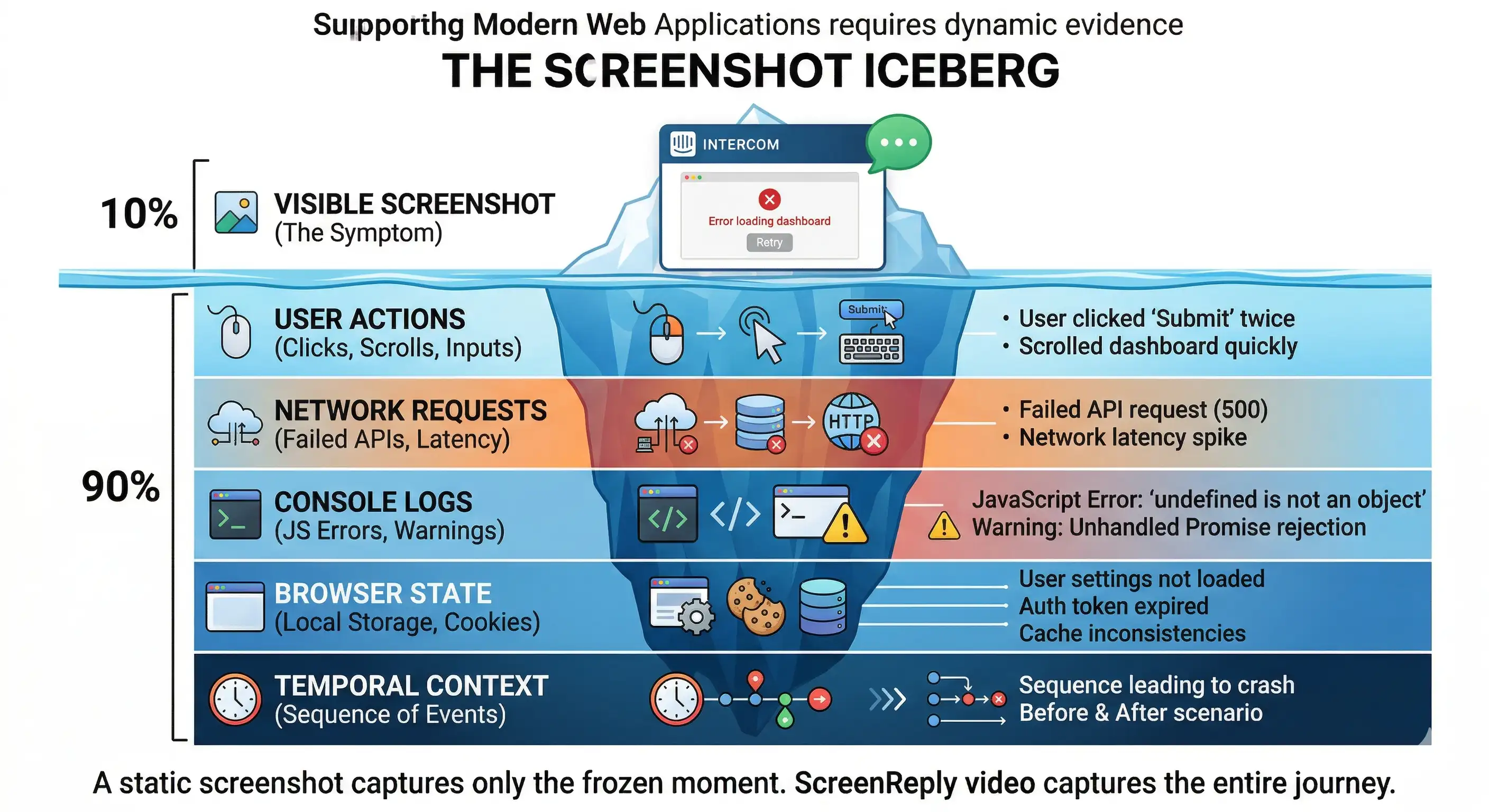
Let’s break down the critical data points that a screenshot entirely misses:
1. The Invisible Sequence of Actions
A customer sends a screenshot showing a modal window stuck open, refusing to close. The image doesn’t reveal that the user rapidly double-clicked the trigger button while the page was loading, causing a JavaScript race condition that permanently locked the UI. Because the agent only sees the final stuck state, they will test the feature with a normal, single click, find no issue, and close the ticket.
2. The Hidden Network Failures
A screenshot shows an empty customer data table with no explicit error message on the UI. The support agent might assume the customer simply hasn’t added any data yet. In reality, a background API call intended to fetch that data failed with a 500 Internal Server Error or a CORS policy block. This failure is quietly logged in the browser’s Network tab. The screenshot doesn’t show the failed request; it just shows the empty result.
3. The Console Noise
Modern SaaS applications output dozens of logs, warnings, and errors into the browser console every minute. The critical clue to solving a bug—perhaps a specific TypeError: Cannot read properties of undefined triggered by a unique user permission setting—is hidden “under the hood” of the webpage.
By relying on screenshots, support leaders are effectively forcing their customers to act as QA engineers. We are expecting non-technical users to know how to open Chrome Developer Tools, filter console logs, identify network payloads, and take screenshots of the technical backend. This is an absurd and unfair expectation to place on a paying user.
The Operational Cost of Static Reporting in Intercom
The reliance on insufficient static evidence doesn’t just frustrate your users; it acts as massive operational drag that slows down your entire support and engineering organization.
When an Intercom agent receives a screenshot that fails to tell the whole story, they cannot escalate that conversation to Tier 2 support or push a ticket to Jira/Linear. Engineering teams strictly demand “Steps to Reproduce.”
This lack of data triggers the painful “Investigation Ping-Pong” cycle. The agent is forced to go back to the customer to painstakingly fish for the context that the screenshot failed to provide.
- Agent (10:00 AM): “Thanks for the screenshot! Could you tell me exactly what you clicked right before this window appeared?”
- Customer (2:30 PM): “I was just trying to update my profile.”
- Agent (2:45 PM): “Got it. Were you using the ‘Save’ button at the bottom of the page, or the quick-save shortcut?”
- Customer (Next Day, 9:15 AM): “The button at the bottom.”
- Agent (9:30 AM): “Thank you. I still can’t reproduce it. What browser and extensions are you currently running?”
A bug resolution process that should have taken 15 minutes easily stretches into four days of frustrating, asynchronous back-and-forth.
The “Evidence Gap” Workflow Failure
This flowchart illustrates how static evidence creates a hard barrier between your front-line Intercom support and your backend engineering team, forcing a looping workflow that drains company resources.
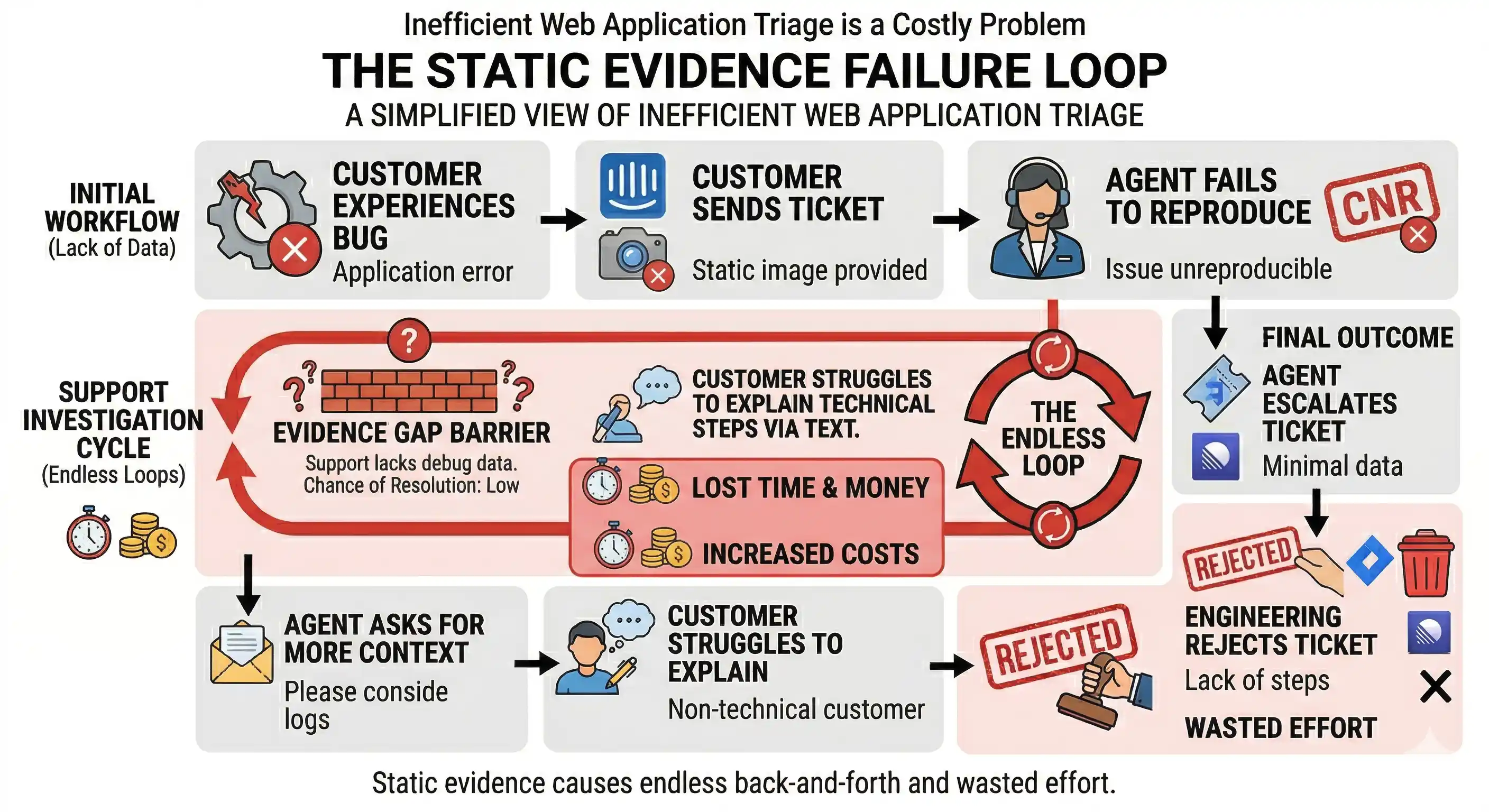
Every single loop in this process costs real money in wasted agent hours, and more importantly, it burns customer goodwill. Your Intercom metrics will reflect this: Time to Resolution (TTR) spikes, First Contact Resolution (FCR) plummets, and Customer Satisfaction (CSAT) scores take a massive hit.
The Paradigm Shift: Asynchronous Video Evidence
If the fundamental problem is that screenshots only capture “nouns” (static states), the logical solution is to utilize a medium that captures “verbs” (actions, processes, and sequences).
Transitioning from static image requests to asynchronous video reporting is not merely a minor policy tweak; it is a fundamental paradigm shift in how you operate your Intercom support desk.
Video acts as the great equalizer. It completely removes the variables of human interpretation and faulty memory. It provides undeniable, objective proof not just that an error occurred, but exactly how the user arrived at that error.
When a customer provides a 30-second screen recording in an Intercom chat instead of a screenshot, the dynamics of the support interaction change instantly:
- Instant Reproduction: The agent doesn’t have to guess the reproduction steps; they simply watch them unfold. They can observe the exact mouse movements, click cadence, and text inputs on their own machine.
- Undeniable Proof: The phrase “it works on my machine” is eliminated from the vocabulary. If the video shows the application breaking, it is broken. The conversation instantly shifts from if a bug exists to why it exists.
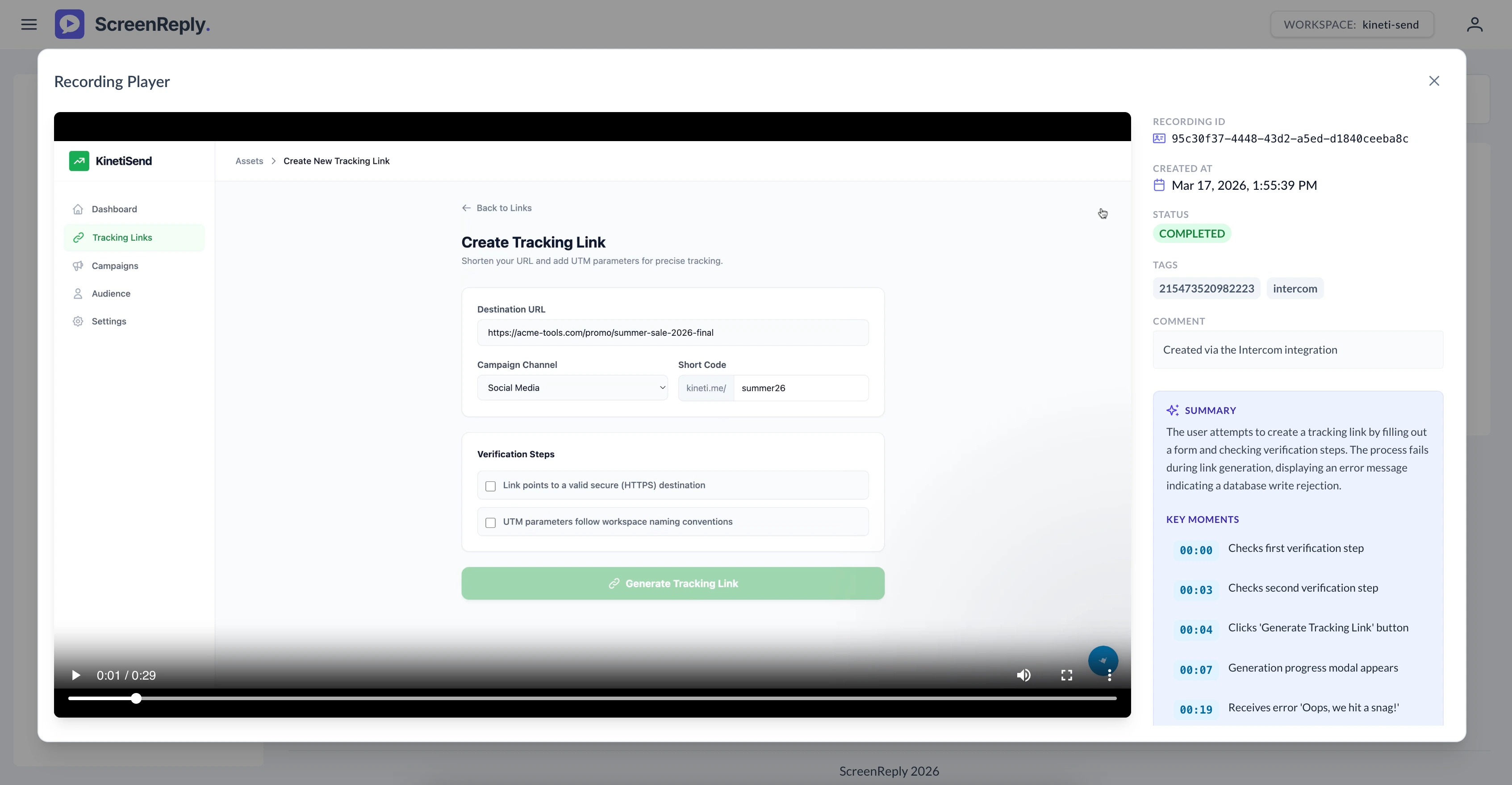
- Capturing the Invisible: The right video capture tools don’t just record pixels on a screen; they can silently capture the underlying environment—browser versions, OS details, and even console logs—syncing them to the video timeline.
Video bridges the massive communication gap between the non-technical experience of the user and the highly technical requirements of the engineer.
Removing Friction: The ScreenReply Integration for Intercom
If video evidence is vastly superior, why hasn’t it become the default standard in every Intercom conversation? Historically, the friction involved in creating a video was simply too high.
Asking an already annoyed B2B customer to leave the Intercom chat, download a third-party screen recorder (like OBS or Loom), install it (potentially fighting corporate firewalls), record their screen, wait for a large MP4 file to render, upload it to a file-sharing service, and paste the link back into the chat is a user experience nightmare. The customer will refuse, and revert back to their default behavior: using the Mac Snipping Tool to send a useless screenshot.
For video to become the primary support standard, the creation process must be easier than taking a screenshot.
The “Zero-Install” Requirement
This exact friction point is what we designed the ScreenReply integration for Intercom to solve. We recognized that to empower support teams to get dynamic evidence, the recording process for the end-user must have absolutely zero barriers.
ScreenReply is engineered specifically for the realities of fast-paced B2B SaaS support:
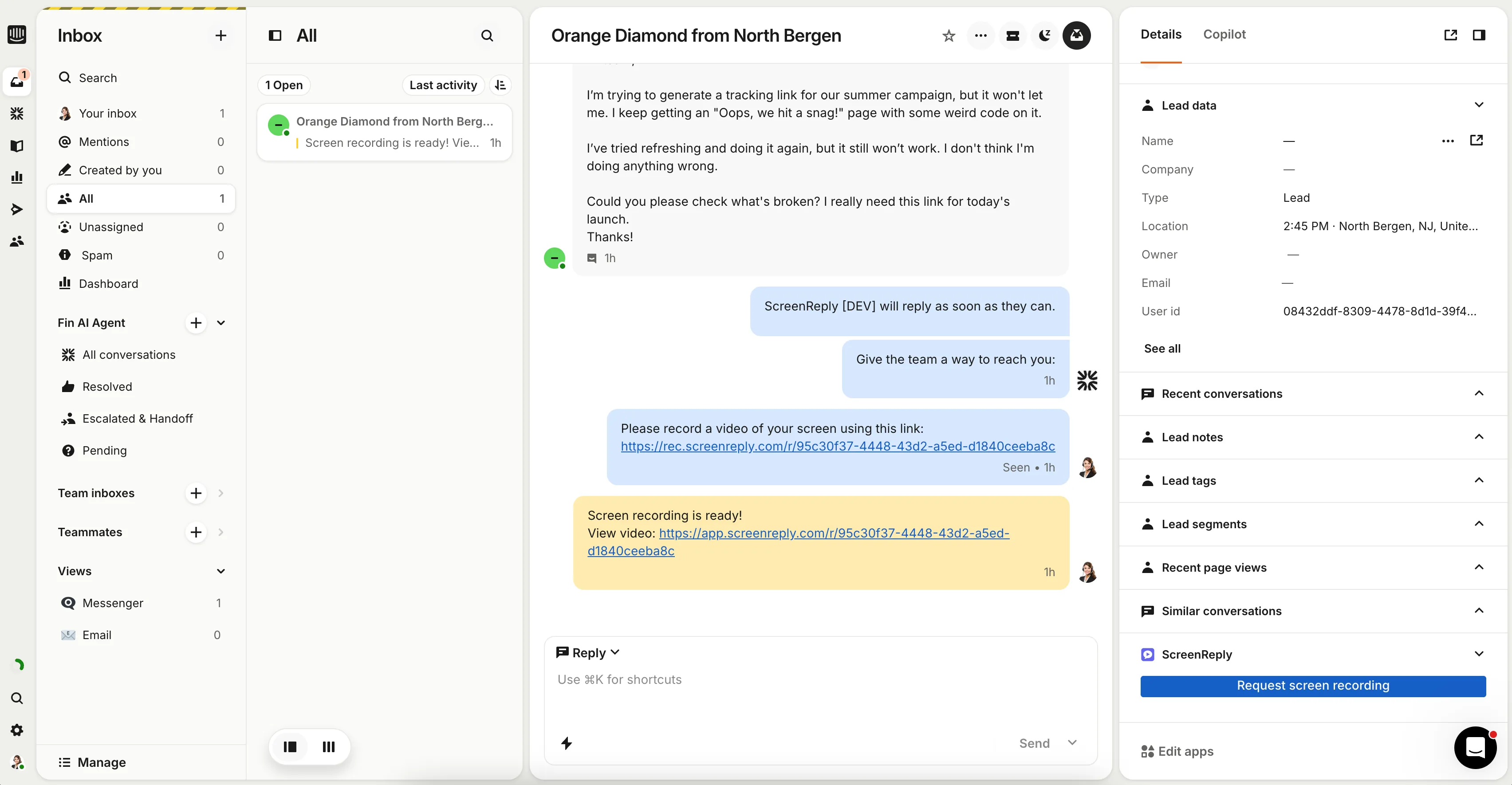
- Agent-Initiated Workflows: Instead of asking the customer to figure out how to make a video, the Intercom agent generates a secure recording link in two clicks, right from the Inbox composer. The customer receives an interactive card in the chat.
- 100% Browser-Based Capture: When the customer clicks the button in the Intercom Messenger, ScreenReply runs entirely via native web technologies. There are no
.exefiles, no Chrome extensions to install, and no logins required. It works instantly. - Seamless Intercom Sync: Once the customer stops recording, the video is automatically processed and embedded back into the very same Intercom thread as an internal note or a direct reply. The agent watches the video without ever leaving their Intercom workspace.
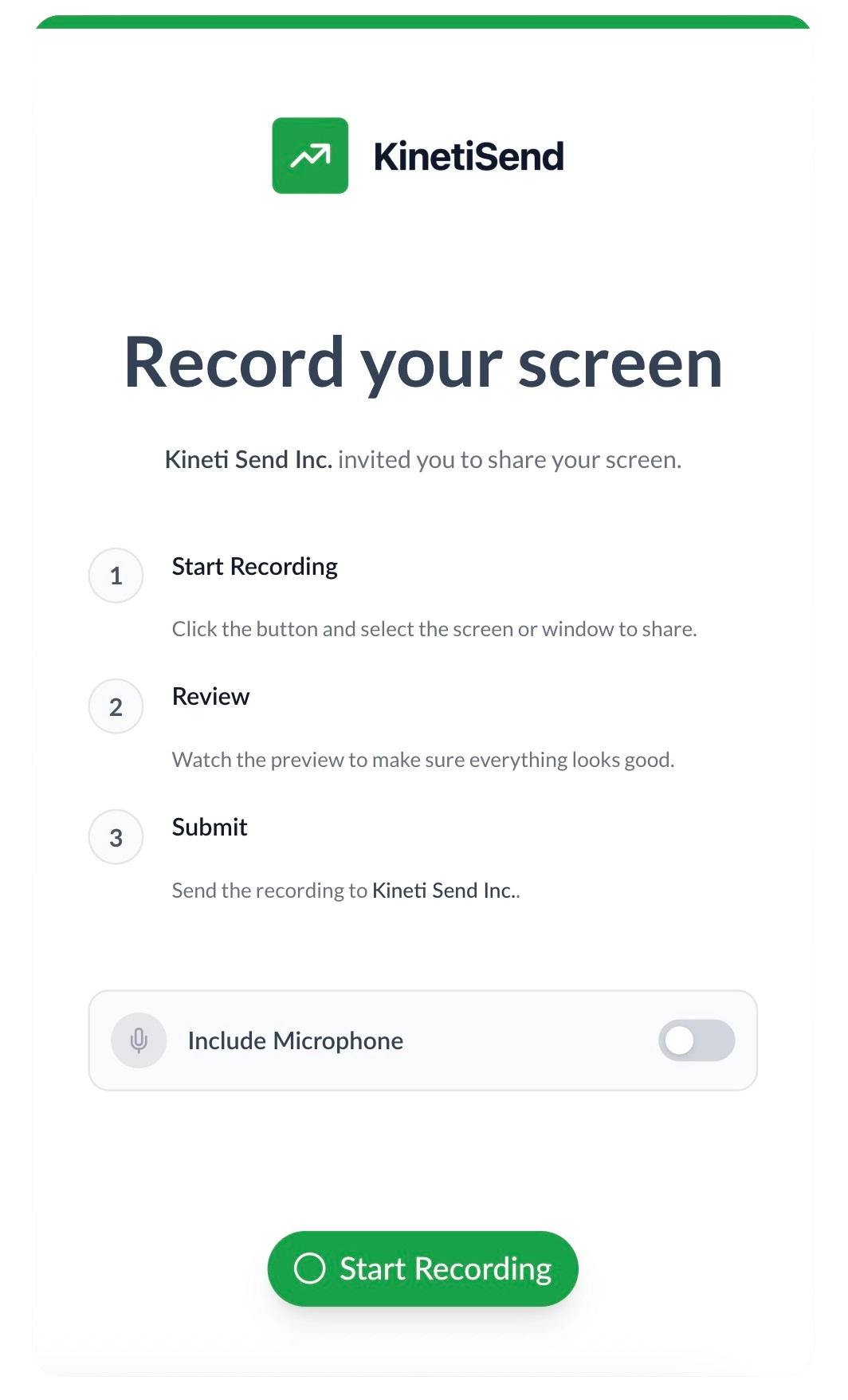
By lowering the barrier to entry for video creation down to a single click, you empower your users. You give them the ability to effortlessly provide your engineering team with the exact level of diagnostic evidence required to squash bugs on the first attempt.
Comparison Matrix: The Support Evidence Spectrum
| Feature | Text Description | Static Screenshot | Asynchronous Video (ScreenReply) |
|---|---|---|---|
| Captures the Final Symptom | Vague | High | High |
| Captures User Steps & Actions | Poor (Relies on memory) | None | Perfect (Visual confirmation) |
| Captures Temporal Sequence | None | None | High (Shows “before and after”) |
| Captures Dynamic UI States | None | Low (Frozen frame) | High (Shows transitions/loaders) |
| Customer Effort to Create | Medium | Low | Low (Zero-Install workflow) |
| Agent Reproduction Rate | Low (<20%) | Medium (~40%) | Very High (>95%) |
Action Plan: Transitioning to Video-First Support in Intercom
To stop the influx of useless screenshots, you need to proactively change the behavior of both your team and your customers. Here is a 3-step action plan to implement in your Intercom workspace today:
- Audit and Update Your Macros: Search your Intercom Saved Replies for phrases like “Please send a screenshot” or “Can you attach an image?” Rewrite them to prioritize video: “So our engineering team can fix this immediately, could you please use the button below to record a quick 30-second video of the issue? You don’t need to install any software.”
- Optimize Custom Bots (Workflows): If you utilize Intercom Custom Bots for bug reporting triage, insert a ScreenReply app card as a required step before routing the conversation to a human agent. Your agents will wake up to tickets that already contain visual proof.
- Train the Team on the “Iceberg”: Educate your support staff on the concept of the Screenshot Iceberg. When they understand how much context they are missing, they will naturally default to requesting video evidence to make their own lives easier.
Conclusion
The habit of accepting screenshots as primary evidence for debugging complex SaaS applications is a dangerous relic of a simpler internet. In today’s highly dynamic web environments, a static image is a deceptive artifact that shows you what broke while actively hiding why it broke.
If you continue to build your Intercom workflows around static screenshots, you are implicitly agreeing to wasted agent hours, frustrating “cannot reproduce” loops, bloated engineering backlogs, and ultimately, unhappy customers.
To radically improve your resolution times and protect your team’s bandwidth, support leaders must acknowledge the fatal limitations of static reporting. Shifting to a zero-friction, asynchronous video-first workflow is not just an upgrade to your data collection—it is a massive upgrade to your customer experience. It shows your users that you value their time by diagnosing their issues correctly on the very first try.
Stop asking your customers to freeze-frame a moving target. Start asking them to show you the motion.
Ready to eliminate the “It Works on My Machine” excuse forever? Equip your Intercom support team with the fastest, easiest way to gather dynamic video evidence from customers, entirely friction-free.
👉 Install the integration and start using ScreenReply today at screenreply.com.
Frequently Asked Questions (FAQ)
Why are screenshots in Intercom no longer enough for complex web bugs? Modern web applications (SPAs) are highly dynamic and state-dependent. A static screenshot only captures the final symptom of an error, completely hiding the user’s prior actions, console logs, and failed network requests that actually caused the issue.
What is the “It Works on My Machine” problem in customer support? This happens when a support agent cannot reproduce a customer’s reported bug because their environment (browser, cache, extensions, data state) differs from the customer’s. A static screenshot fails to communicate these critical environmental differences.
How does the “screenshot ping-pong” affect Intercom metrics? Asking for screenshots and subsequent textual clarifications drastically increases Time to Resolution (TTR) and lowers First Contact Resolution (FCR). Customers and agents wait on each other across time zones, tanking CSAT scores and wasting resources.
How does the ScreenReply integration with Intercom solve bug reporting? ScreenReply allows a support agent to send a one-click screen recording request directly inside the Intercom chat. The customer records their screen in the browser with zero installations, and the video appears instantly in the agent’s Intercom inbox for review.
Does the customer need to install a Chrome extension to record a video in Intercom? No. ScreenReply uses a “Zero-Install” architecture. The recording relies on native browser capabilities, reducing technical friction for the end-user to absolutely zero, ensuring high completion rates for bug reports.