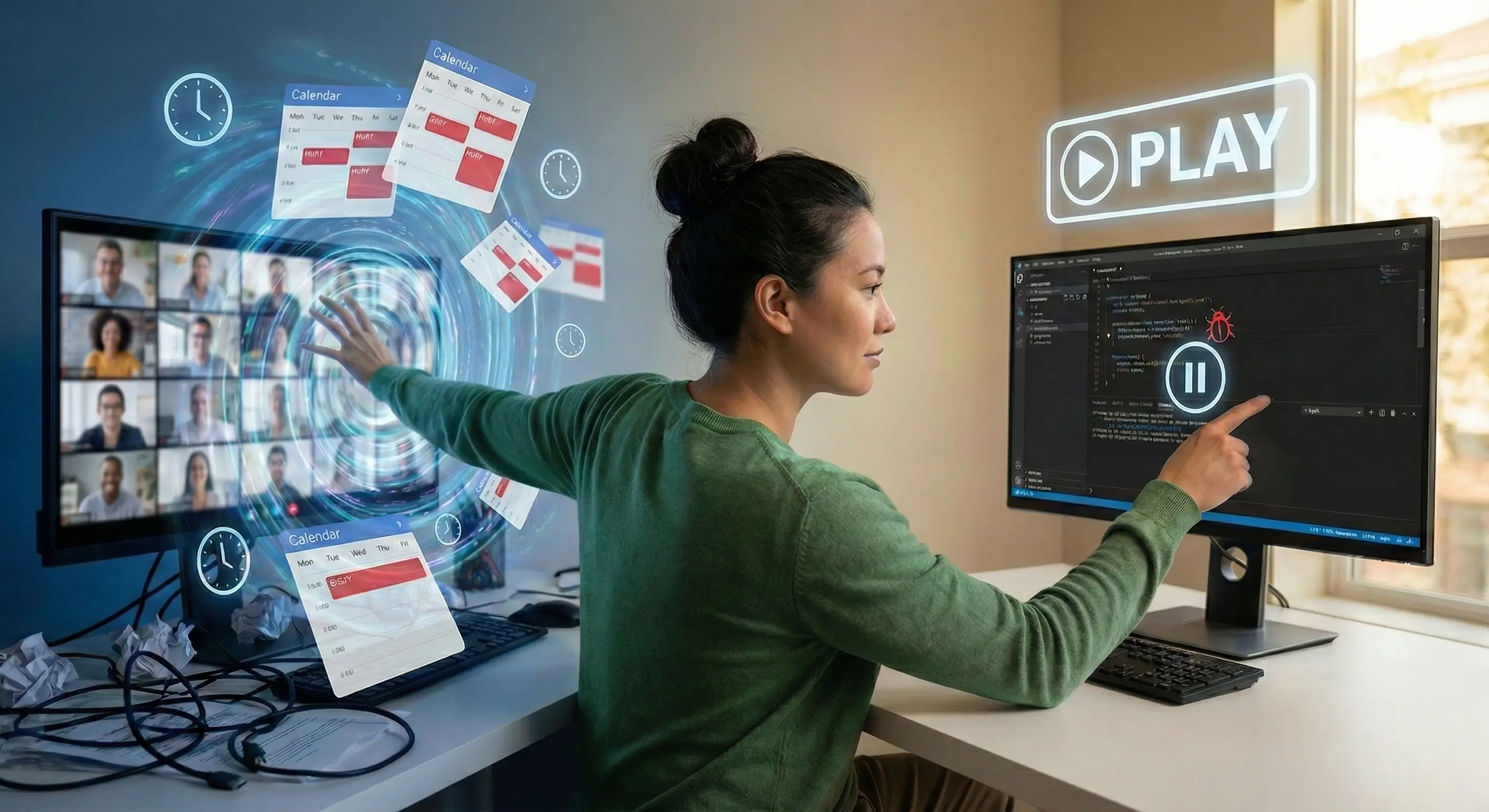
Beyond the Zoom Call: Troubleshooting Complex Client Bugs Without the Meeting
Mon Jan 26 2026
Introduction
It is the knee-jerk reaction of every conscientious Customer Success Manager (CSM) and support agent. A high-value client reports a confusing, high-priority bug. The text description is muddy. The screenshots are inconclusive. Panic sets in.
So, you type the magic words: “Do you have 30 minutes to jump on a Zoom call so I can see what’s going on?”
On the surface, this looks like excellent service. You are being responsive, personal, and hands-on. But if you look at your team’s calendar—and your engineering team’s throughput—you will see a different story. You will see a calendar that looks like Swiss cheese, fragmented by 30-minute blocks that destroy “deep work.”
The “Quick Sync” is rarely quick. It involves:
- The Scheduling Dance: “Is 2 PM EST good?” “No, how about 10 AM PST?” (24 hours lost).
- The Technical Setup: “Can you hear me? Can you see my screen?” (5 minutes lost).
- The Replication Struggle: Watching the client try to reproduce the bug live, often failing because of the “demo effect.”
While you are waiting for that meeting to happen, the bug remains unfixed. The client remains blocked.
In the world of technical troubleshooting, Synchronous Communication is a bottleneck.
To scale a SaaS support organization efficiently, we must separate relationship building from technical troubleshooting. Relationships require real-time interaction. Debugging requires data, focus, and asynchronous analysis.
In this article, we will explore why the “Zoom Default” is hurting your metrics and how to transition to an asynchronous, video-first workflow that resolves complex bugs faster, without a single calendar invite.
Section 1: The “Scheduling Latency” Trap
We tend to measure support speed by “First Response Time” (FRT). But the metric the client actually cares about is Time to Resolution (TTR).
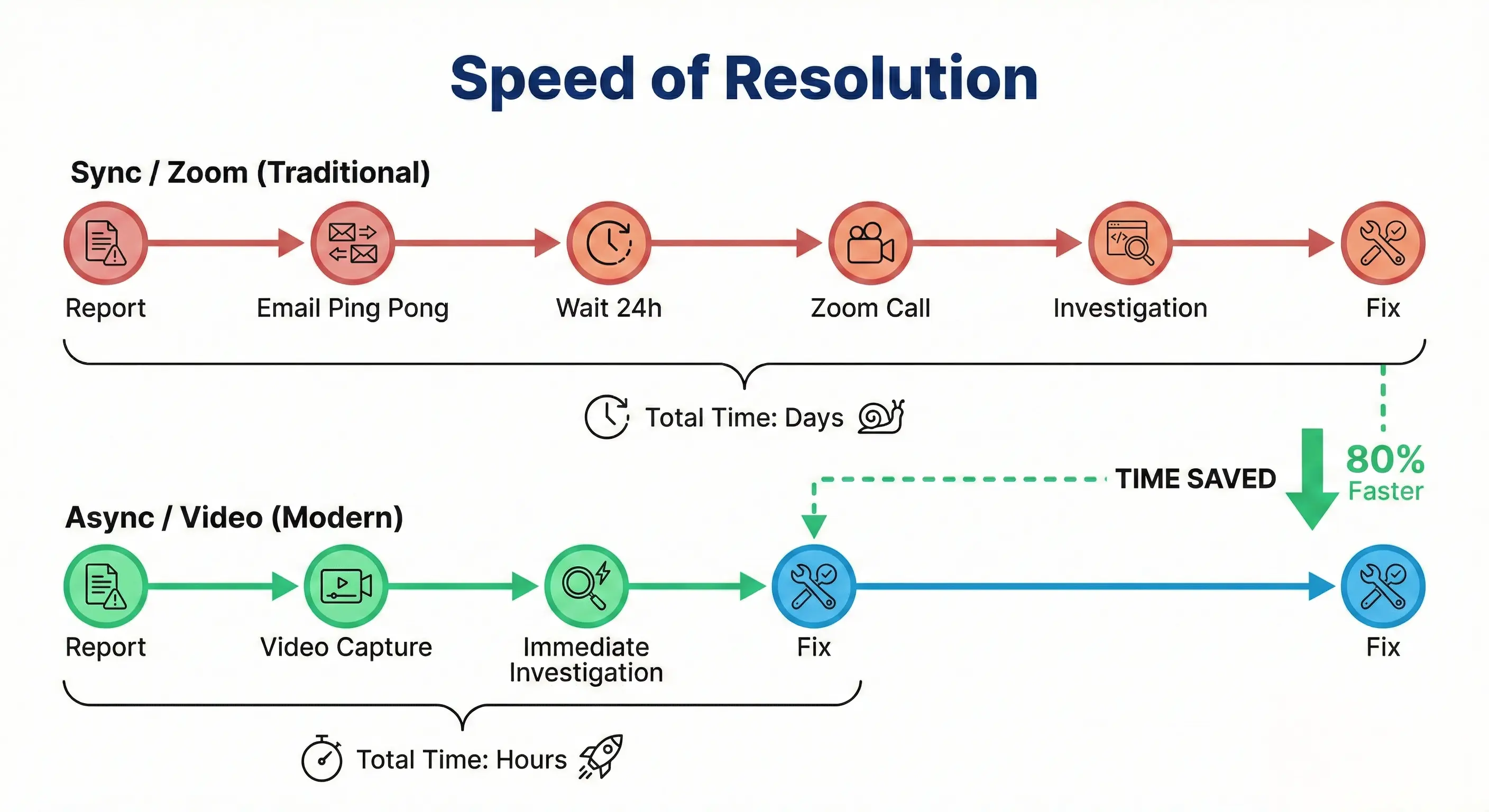
When you suggest a Zoom call, you might have a fast FRT (you replied quickly), but you have just guaranteed a slow TTR.
This is due to Scheduling Latency.
If a client reports a bug on Tuesday at 2:00 PM, and the earliest mutually available slot is Wednesday at 11:00 AM, you have introduced a 21-hour delay into the resolution process. During those 21 hours, absolutely no progress is being made on the ticket. It is dead time.
The Cost of Context Switching
For your support agents and engineers, the cost goes beyond just the duration of the meeting. It is about the destruction of focus.
Troubleshooting complex software issues requires “Deep Work”—the ability to hold complex logic structures in one’s head.
- Scenario A (Async): An engineer spends 2 continuous hours investigating logs and code. They find the fix.
- Scenario B (Sync): An engineer spends 30 minutes investigating. Then they have a 30-minute client call. Then they have 15 minutes of “recovery time” to reset their brain. Then they try to get back into the code.
Research shows it takes an average of 23 minutes to regain focus after an interruption. A calendar full of troubleshooting calls ensures your team never reaches peak cognitive efficiency.
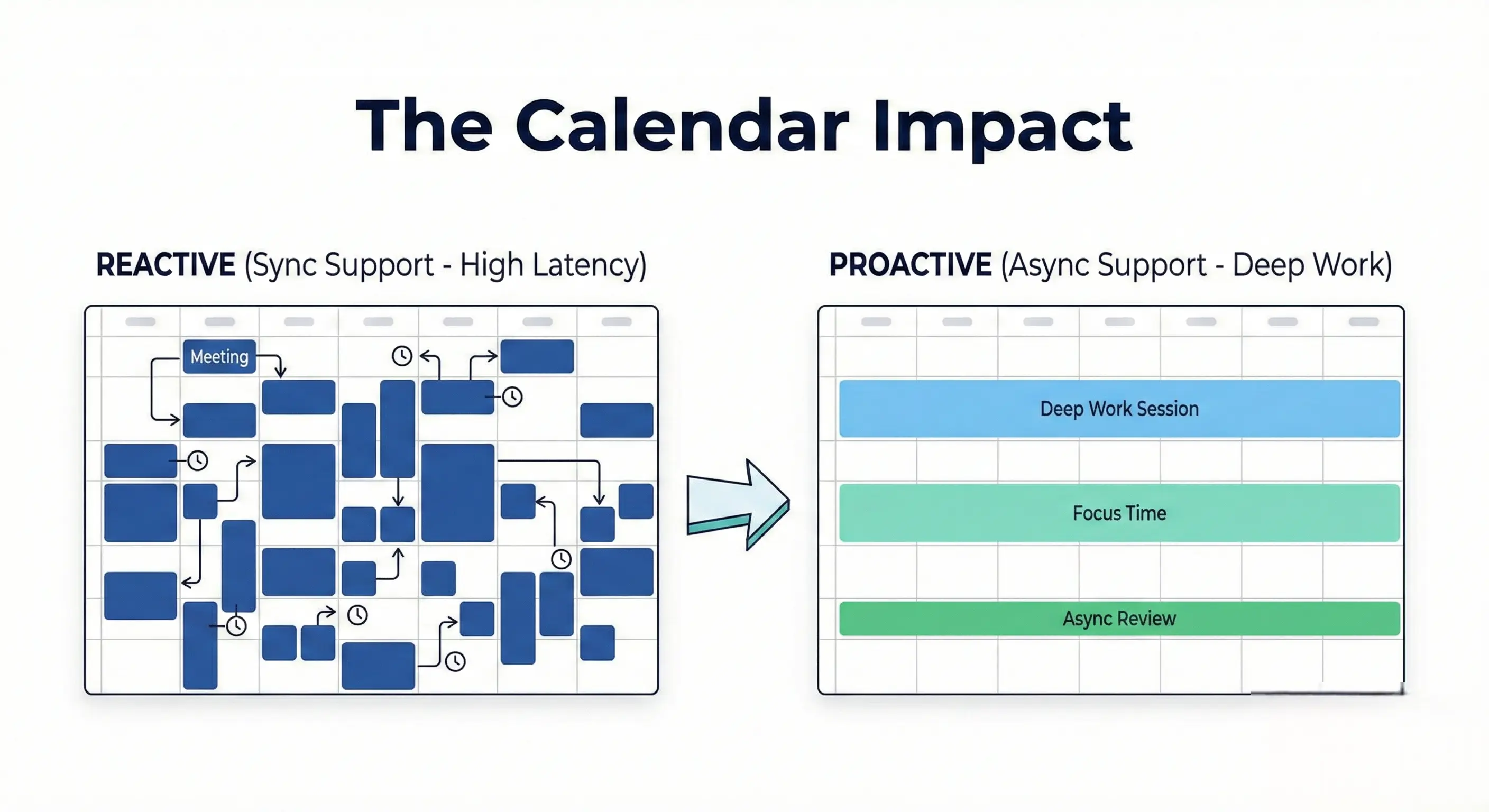
This visual highlights the operational reality. The “Reactive” calendar feels busy, but the “Proactive” calendar actually gets bugs fixed.
Section 2: Why We Default to Zoom (The Diagnostic Gap)
If Zoom calls are so inefficient, why are they the industry standard for complex bugs?
Because text is terrible at describing dynamic software behavior.
When a client writes, “I clicked the button and it didn’t work,” the agent is blind.
- Did the page refresh?
- Did a spinner appear?
- Was there a console error?
- What was the exact URL?
The agent asks for a screenshot. The client sends a static image of the broken state. This is a “noun” (the result), but the engineer needs the “verb” (the action).
Faced with this lack of data, the agent requests a Zoom call because it is the only way they know to see the timeline of events. They need to watch the movie, not look at the photograph.
The Live Demo Fallacy
However, the “Live Demo” on a Zoom call is often the worst way to gather this data.
- Performance Anxiety: The client is under pressure to “make it break” while you watch.
- Missing Tools: You cannot inspect the Network tab or Console logs easily on a client’s screenshare without asking them to open developer tools (which can be confusing/intimidating).
- No Record: Unless you record the entire meeting (which adds privacy concerns), once the call ends, the evidence is gone. If the engineer needs to see it again, you have to describe it from memory.
We need a solution that provides the visual fidelity of a live screenshare but the flexibility of an email.
Section 3: The Async Troubleshooting Workflow
The solution is not to stop seeing the screen; it is to decouple the “seeing” from the “meeting.”
By shifting to an asynchronous video workflow, you eliminate Scheduling Latency completely. The client shows you the problem now, and you fix it as soon as you are free.
Here is the 4-step workflow to replace the troubleshooting call.
Step 1: The “Show Me” Trigger
When a ticket arrives that is too complex for text (e.g., “Intermittent UI glitch” or “Workflow logic error”), do not ask for a call. Instead, use a macro response:
“To get this fixed immediately without making you wait for a calendar opening, could you quickly record the issue when it happens? Use this link—no install needed.”
Step 2: High-Fidelity Capture
The client records the issue on their own time. This captures the “Crime Scene” perfectly.
- They record the steps leading up to the bug.
- They narrate what they expected vs. what happened.
- Crucially, modern tools capture the environment (OS, Browser, Resolution) automatically.
Step 3: The “Deep Dive” Analysis
The agent receives the video instantly. Now, they can perform a superior analysis compared to a live call:
- Pause and Rewind: “Wait, I missed that toaster message. Let me go back 5 seconds.”
- Frame-by-Frame: They can spot subtle UI flickers that would be missed in a real-time stream.
- Shareability: If the agent is stuck, they don’t need to summarize the issue to a Tier 2 engineer. They just paste the video link. “Watch this, specifically at 0:45.”
Step 4: The Video Resolution
Instead of a long email trying to explain the fix, the agent records a video reply. “Hi John, I watched your video and saw exactly what happened. It’s a setting in the admin panel. Let me share my screen and show you exactly which box to untick.”
Section 4: Removing Friction with ScreenReply
The success of this workflow hinges on one factor: Friction.
If you ask a client to record a video, and that process involves downloading a .exe file, installing a Chrome extension, or creating a user account, you have failed. They will refuse and demand a Zoom call.
This is why we built ScreenReply specifically for support teams.
To make the “Async Switch” viable, the tool must be lighter than a calendar invite.
- Zero-Install Architecture: ScreenReply runs entirely in the browser. You send a link, the client clicks “Record.” That is it.
- Enterprise Friendly: Because there is no software installation, you bypass the friction of corporate IT policies that block unknown applications.
- Instant Upload: The moment the client hits “Stop,” the link is ready. No rendering time, no file attachments.
By removing the technical barrier, you empower the client to be a helpful partner in the troubleshooting process rather than a passive waiter.
Comparison: The Troubleshooting Matrix
| Feature | Zoom / Live Call | Text / Email | Async Video (ScreenReply) |
|---|---|---|---|
| Visual Context | High | Low | High |
| Scheduling Required | Yes (High Friction) | No | No |
| Time to Resolution | Slow (Days) | Slow (Ping-pong) | Fast (Hours) |
| Engineer Focus | Low (Interruptive) | High | High (Deep Work) |
| Reproducibility | Medium (Demo effect) | Low | Perfect (Recorded) |
| Customer Effort | High (Must meet) | Medium (Must write) | Low (Click & Talk) |
Section 5: Framing the “No” (Culture Shift)
The hardest part of this transition is psychological. Agents worry that declining a call feels rude.
You must reframe the narrative. You are not refusing a meeting; you are expediting the solution.
The Script for CSMs
Do not say: “I don’t have time for a call, send a video.” Do say: “I want to make sure our engineering team sees exactly what you are seeing without delays. If you can record the issue quickly here, I can get this in front of a senior engineer immediately, rather than waiting for our schedules to align tomorrow.”
The “VIP” Perception
Paradoxically, async video can feel more premium than a call.
- A Zoom call says: “I will throw bodies at the problem.”
- A Video Reply says: “I have analyzed your specific issue in detail and created a custom walkthrough just for you.”
It creates a permanent asset. The client can share your solution video with their team, preventing future tickets on the same topic. A Zoom call is ephemeral; a ScreenReply is a knowledge base asset.
Conclusion
The “Zoom Call Default” is a relic of an era when we didn’t have better tools. In a modern SaaS environment, scheduling a meeting to watch a bug happen is an inefficient use of two people’s time.
It fragments your day, delays the fix for the client, and creates a culture of reactivity.
Troubleshooting complex bugs requires visual evidence, not live conversation. By adopting an asynchronous, video-first workflow, you respect your client’s time by solving their problem faster, and you respect your team’s time by allowing them to focus.
The next time a complex ticket lands in your queue, resist the urge to open your calendar. Open your eyes instead.
Ready to clear your calendar and close tickets faster? Start using the only zero-friction video tool designed for support. 👉 Start using ScreenReply today